

The Complete 3dsMax to JT Conversion Guide
General Information
This guide is part of the RapidPipeline 3D Formats Knowledge Database.It shows how to convert 3dsMax to JT, if you'd like to know more about the formats, please check out the following links:
Converting and Optimizing 3dsMax Files to JT
RapidPipeline can import 3dsMax files, but currently doesn't support exporting to JT format yet.
If you specifically need JT export functionality for your workflow, please feel free to get in touch with us - we'd be happy to discuss your requirements and potential timeline for adding this export capability.
If you need, you can import JT files and convert them to any of these 8 formats: FBX, glTF, OBJ, PLY, STL, USD, USDZ, and VRM.
In the meantime, you can explore other options on the 3D Formats Knowledge Database, which might serve as suitable alternatives for your workflow depending on your target applications and use cases.
What are 3dsMax and JT files commonly used for?
The 3dsMax file is a format mostly used for 3D modeling & rendering applications.
The JT file is a format mostly used for lightweight 3D visualization and collaboration.
Best-in-Class 3D Processing in Your Favorite Tools.
100% Local Processing via Desktop Software.

Comparison of Features Supported by 3dsMax and JT
| Feature | Supported by 3dsMax | Supported by JT |
|---|---|---|
| Morph Targets | Yes | No |
| Rigid Animations | Yes | Partial0 |
| Skinned Animations | Yes | No |
| Animations | Yes | Partial1 |
| Free-Form Surfaces | No | Yes |
| Geometry Compression | No | Yes |
| Quad Meshes | Yes | Yes |
| Basic 3D Geometry | Yes | Yes |
| PBR Materials | Yes | No |
| Transparent Materials | Yes | Yes |
| Vertex Colors | Yes | Yes |
| Materials | Yes | Yes |
| Scene Composition | No | Yes |
| Hierarchical Scene Graph | Yes | Yes |
| Scene Nodes | Yes | Yes |
| Standardized Format | No2 | Yes |
| Embedded Textures | Yes | Yes3 |
| Multiple UV Channels | Yes | Partial4 |
| Normal Mapping | Yes | Yes5 |
| Procedural Textures | Partial | Partial6 |
| Texture Compression | No | Partial7 |
| Texture Transforms | Yes | Yes8 |
| Texturing | Yes | Yes |
Best-in-Class 3D Processing in Your Favorite Tools.
100% Local Processing via Desktop Software.
Limitations of 3dsMax Files to JT Conversion Workflow
The following limitations should be taken into account when converting 3dsMax files to JT format:
| 3dsMax Feature (not supported by JT) | Limitation Details |
|---|---|
| Multiple UV Channels | Multiple UV Channels Support: 3dsMax: Full support | JT: Partial support 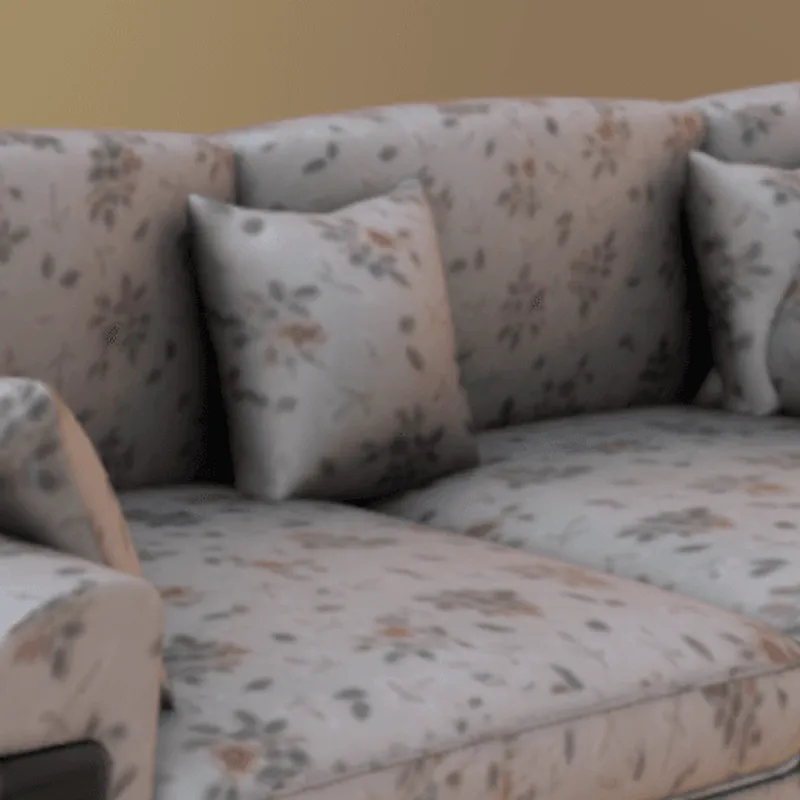 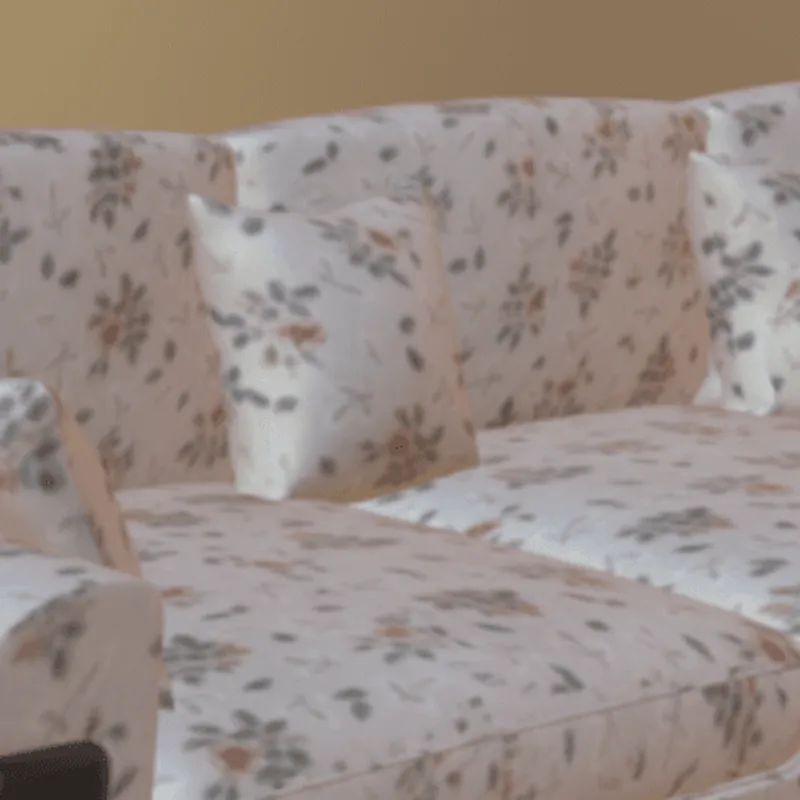 JT Notes: JT's material model supports multi-texture layers, but multiple independent UV coordinate sets per vertex are not fully defined across all geometry representations. Impact: Multiple UV channels allow the optimized and sophisticated use of various 3D modeling features at once. For example, one can use one set of UVs and 2D texture data to model a tiling texture or procedural material, and another UV set to leverage a global lightmap or occlusion map of the 3D model. In this example, a combination of tiled texture (UV channel 1) and baked ambient occlusion map (UV channel 2) is used. Without support for this feature, one needs to either give up the tiling property (e.g., by using a tool like RapidPipline to bake a single texture atlas), or give up the ambient occlusion map, as only one UV channel will be usable. |
| PBR Materials | PBR Materials Support: 3dsMax: Full support | JT: No support  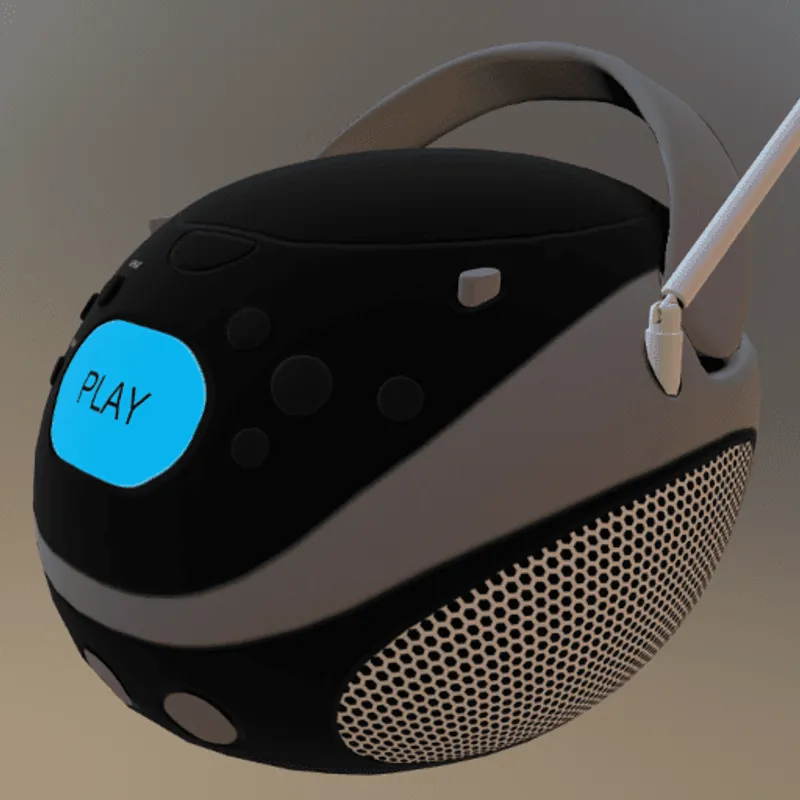 Impact: PBR materials enable Physically-Based-Rendering (PBR) for a standardized, photorealistic look of rendered images. PBR uses concepts like metallic-roughness or specular-glossiness properties and a microfacet-based modeling of the surface, using a concept called BRDF (Bi-Directional Reflectance Distribution Function). In this example, PBR materials are used to achieve realistic looking plastic and metal materials. Without support for PBR materials, only basic colors and shading can be used (for example, based on more simple shading models, such as the Blinn/Phong model). |
| Animations | Animations Support: 3dsMax: Full support | JT: Partial support 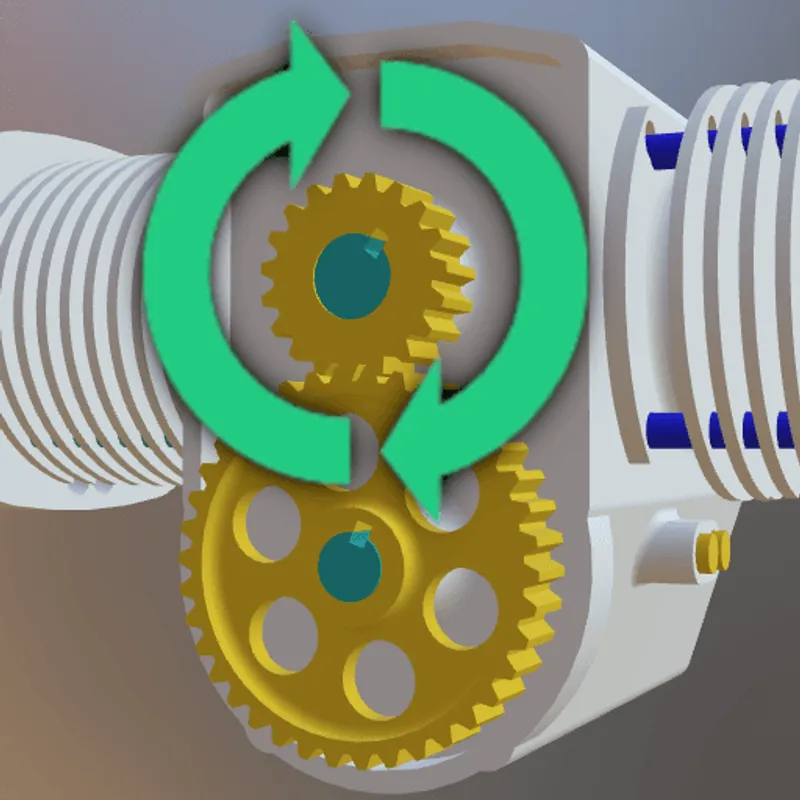 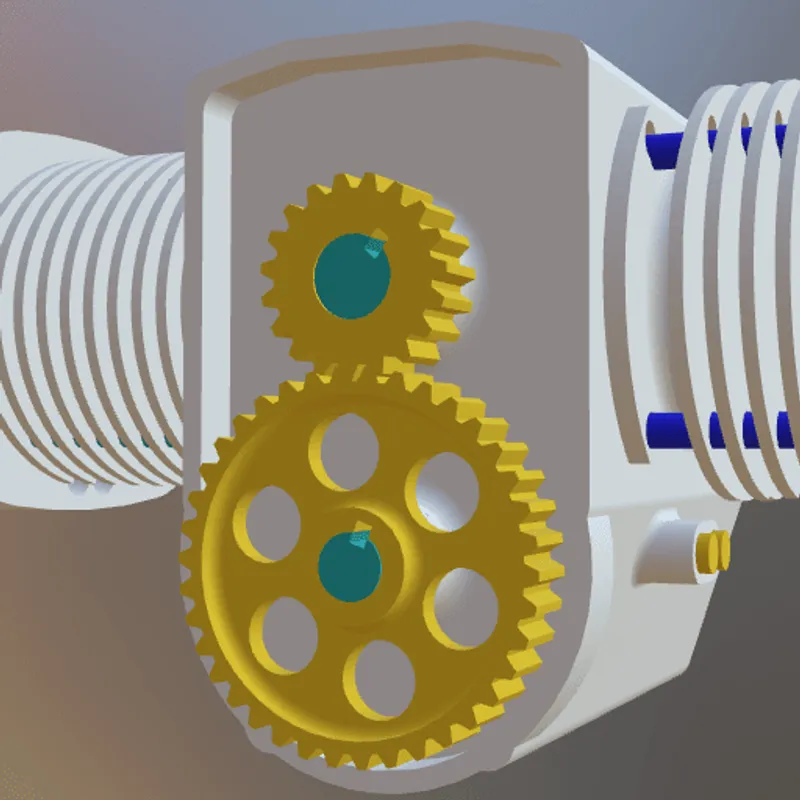 JT Notes: Simple animation support for assembly operations Impact: Animations are an important part of many interactive 3D assets, for example in real-time rendering (including games, XR training, assembly instructions, product demos, and other use cases). There are various kinds of animations that can be used on 3D models. In this example model, a rigid animation is used to make the gears spin. Without support for this feature, in this example, the gears won't move. |
| Skinned Animations | Skinned Animations Support: 3dsMax: Full support | JT: No support   Impact: Skinned animations are commonly used for 3D character models in interactive applications, such as games or virtual worlds. They make it possible to easily animate the 3D model using a helper structure based on virtual bones, composing a virtual skeleton for animation control. In this example, a skinned animation is used to pose a 3D character. Without support for skinned animations, the 3D model will remain in its default pose, such as the default T-pose. |
| Morph Targets | Morph Targets Support: 3dsMax: Full support | JT: No support 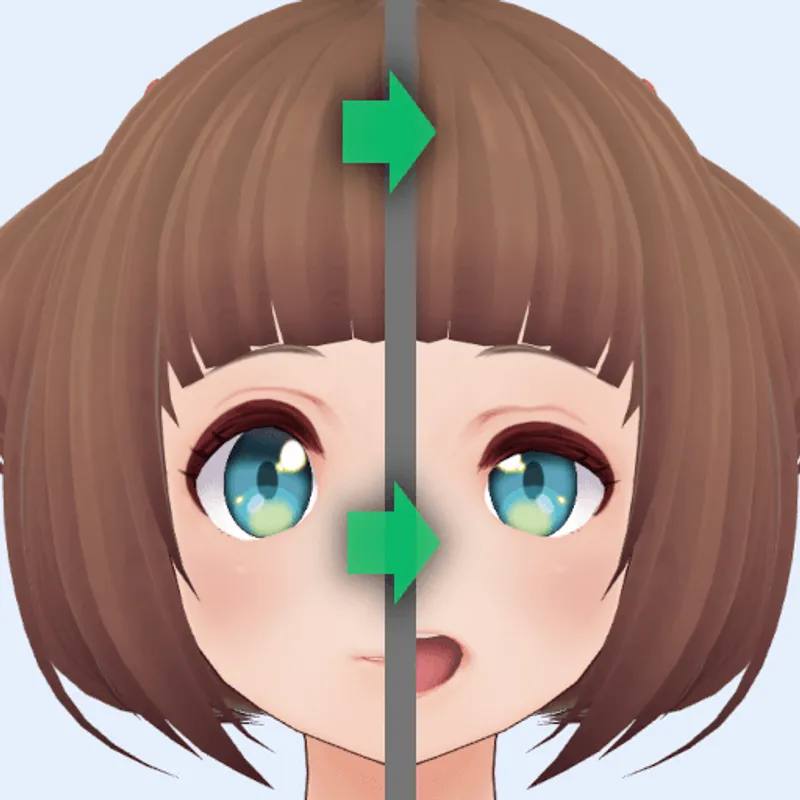  Impact: Morph Targets, or "Blend Shapes", are commonly used to animate facial expressions and soft surfaces, for example cloth under a cloth simulation. They model various states of the animations with different vertex positions. In contrast to skinned animations, morph targets do not use any virtual bones, but work solely on the vertex data. In this example, a facial animation is achieved through morph targets. Without suport for this feature, in this example, the face will not show the animation. |
| Rigid Animations | Rigid Animations Support: 3dsMax: Full support | JT: Partial support 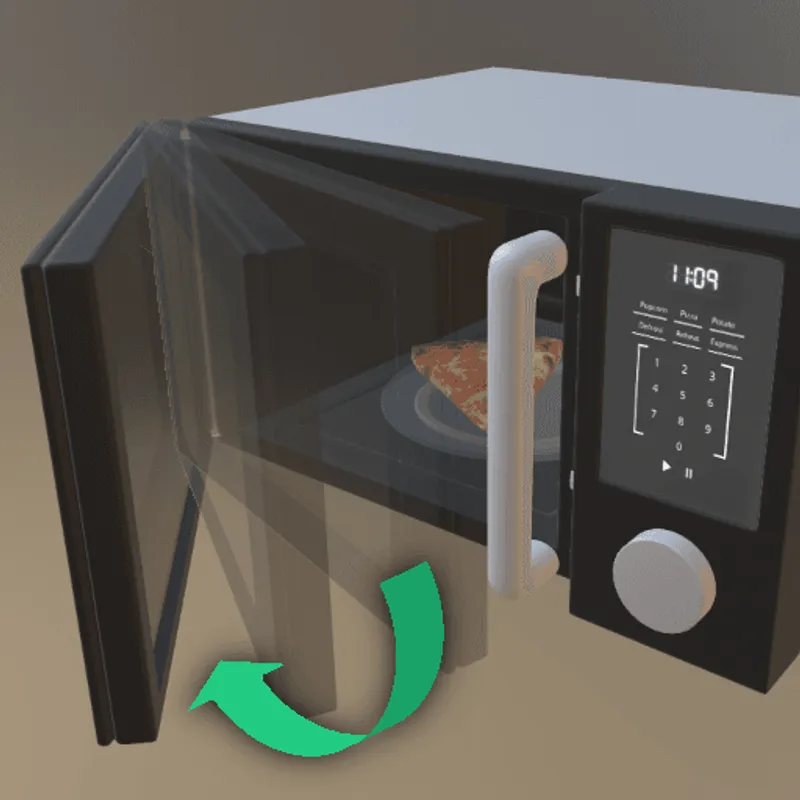 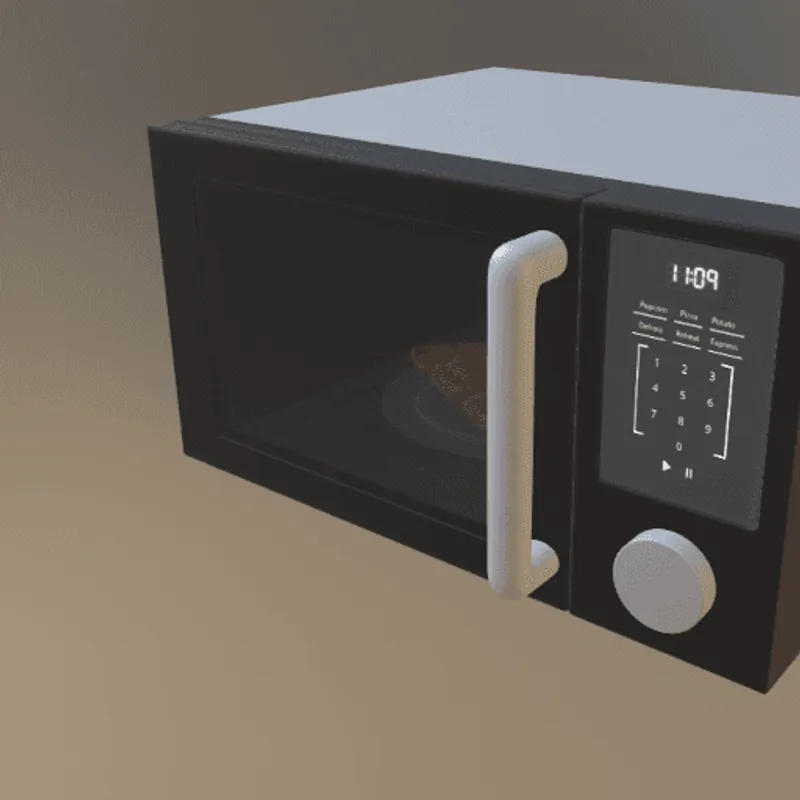 JT Notes: Basic rigid body animation for design review Impact: Rigid Animations are typically used to animate mechanical parts. In this example, the door of this 3D model of a microwave can be interactively opened or closed, using a rigid animation that gradually changes the 3D transformation of the door. Without support for this feature, in this example, the door will just stay in place and won't move. |
What's the best way to get 3dsMax files into my 3D applications, and are there alternatives to using JT?
Doing 3D conversion right, especially at scale, can be tricky, as 3D data is in general a rather complex (yet very powerful!) medium. This also applies to 3dsMax and JT files - the conversion guide above provides a rough first idea about that. Once you know what you would like to do, tools like RapidPipeline can help you perform the necessary steps, and to even automate the process for thousands or even millions of files.
Especially when introducing pipelines and workflows at scale in an enterprise context, it is usually good to rely on dedicated tools and expertise, making sure you do not introduce any steps into your 3D workflow that are detrimental to the final output's quality, or that take your team too much time (and money).
If you're interested to hire dedicated expertise from the best in the field to help your company reach your goals fast and reliably, please do not hestitate to contact DGG. Being the creators of RapidPipeline, and ambassadors for open 3D standards for more than a decade, we have been building some of the world's most advanced 3D pipelines, having processed many millions of 3D assets.
Therefore, our expertise will help you to reach your goals faster, at scale, and with the least possible friction, since we are focused on maximum interoperability.
To get started with 3D data conversion and optimization today, sign up for a free account!
If you have any questions, feel free to chat with our human team.
Best-in-Class 3D Processing in Your Favorite Tools.
100% Local Processing via Desktop Software.
Meet the Author

3D Knowledge Team
3D Technical Artists
RapidPipeline lets you convert, optimize and prepare your 3D models, easily. Try it today, or meet our human 3D experts. The Best-in-Class Tools for Your 3D Processing Jobs