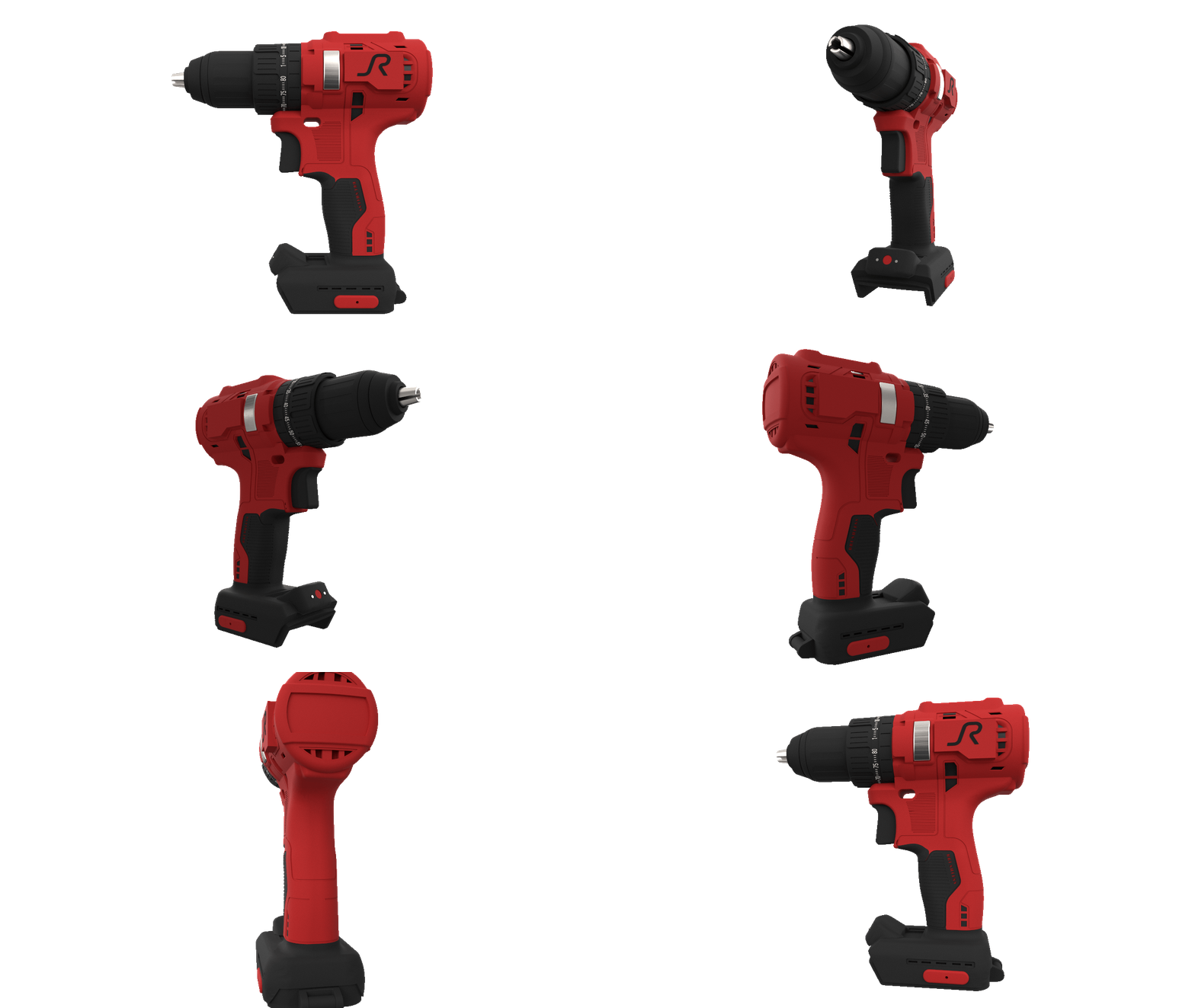
3D Model of the Month - Rendering with RapidPipeline Twin Studio
Introduction
The latest release of RapidPipeline Twin Studio (RPTS) brings a number of improvements to our renderer, allowing for quicker render times when needed, improved control when creating renders, and a fix for colors that were washed out during rendering.
In this Model of the Month, we’ll highlight what’s new as well as showcase an example using a CAD model of a drill.
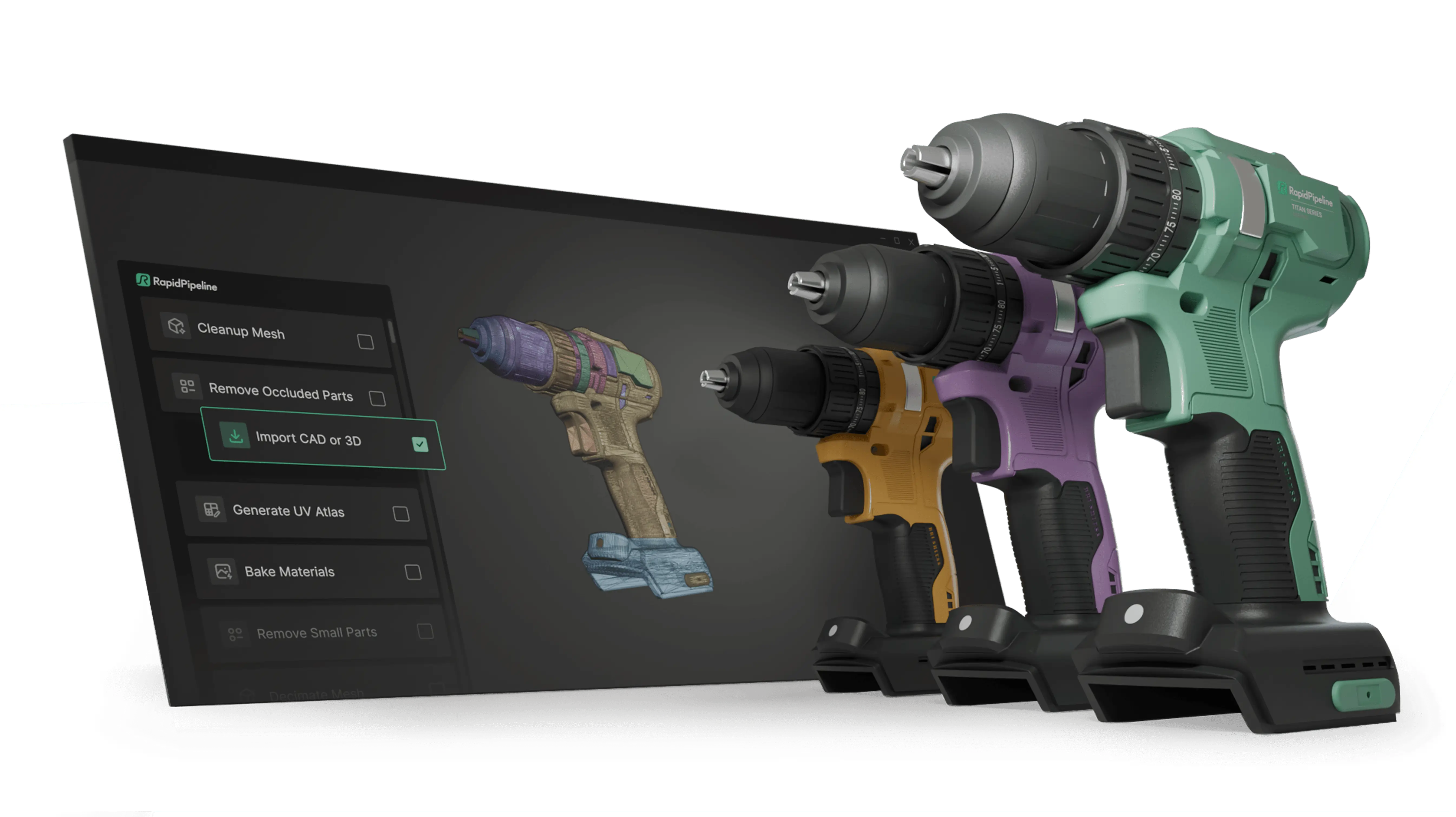
Create 3D digital twins for CGI & XR, faster than ever.
Turn your raw 3D or CAD into realistic digital twins.
What's new
The latest release brings several quality-of-life improvements to rendering in RPTS, these include:
- Render presets which allow you to choose from a selection of render presets i.e. Preview, Default and Final Quality to switch between quick checks and final renders.
New render window with live preview to watch your renders generate in real time, with the ability to pause, resume or stop it at any point.
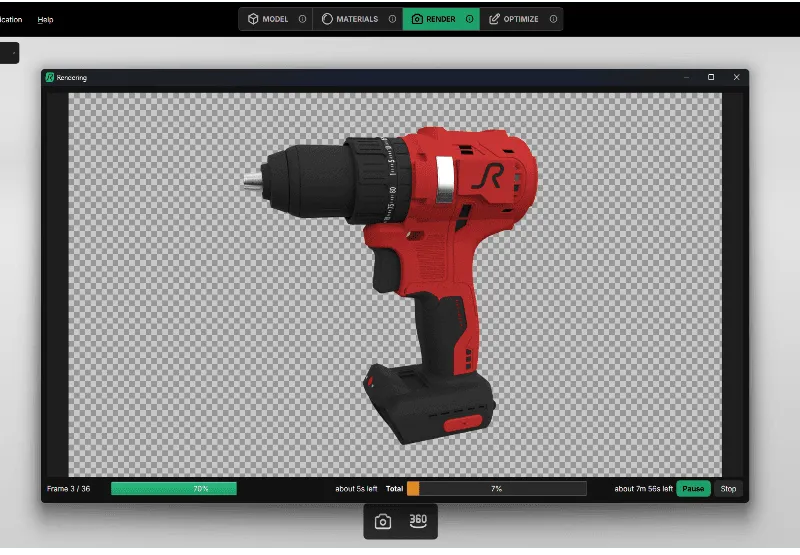
- Single render quality settings for fine-tuning the quality of single renders, which was previously limited to turntable renders.
Accurate colors to fix a color correction issue that could make renders look washed out, so colors now come out more accurately.
Example: Creating Digital Twin renders from a CAD model
Preparing the model
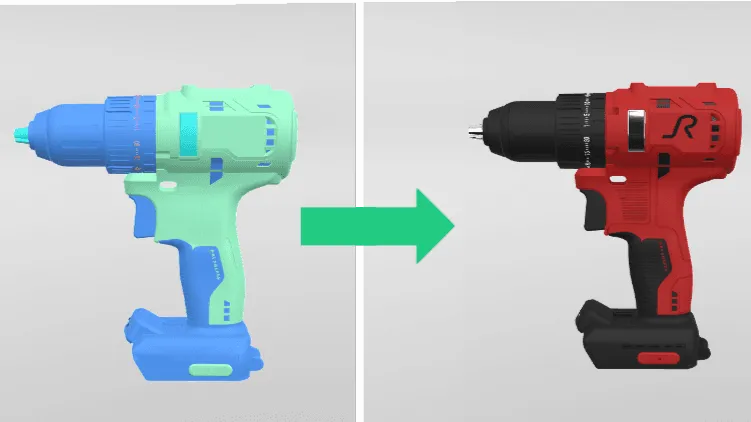
For this example, we used a drill model that is originally a .3dm CAD file. After importing it into RPTS, we ran a few Magic Actions to reduce the total face count, remove occluded geometry and generate UVs. We then applied materials to make it match the real-life product.
Create 3D digital twins for CGI & XR, faster than ever.
Turn your raw 3D or CAD into realistic digital twins.
Setting up the render
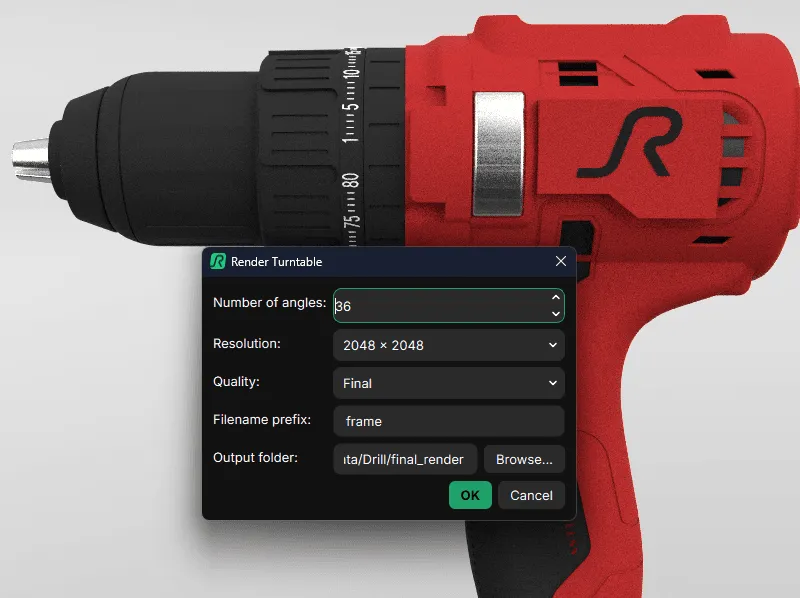
With the model finished, we simply switched to the Render tab. For this example, our goal was a set of renders that could be turned into a simple looping turntable GIF. To set this up we ;
- Selected the Turntable render option
- Chose the number of angles/frames to be rendered
- Set our desired resolution & set our quality to “Final”
- Selected our output folder
Results & Conclusion
The result is a set of high-quality renders that can be used individually to showcase the model from several angles, or combined into looping GIF, to showcase the final product.
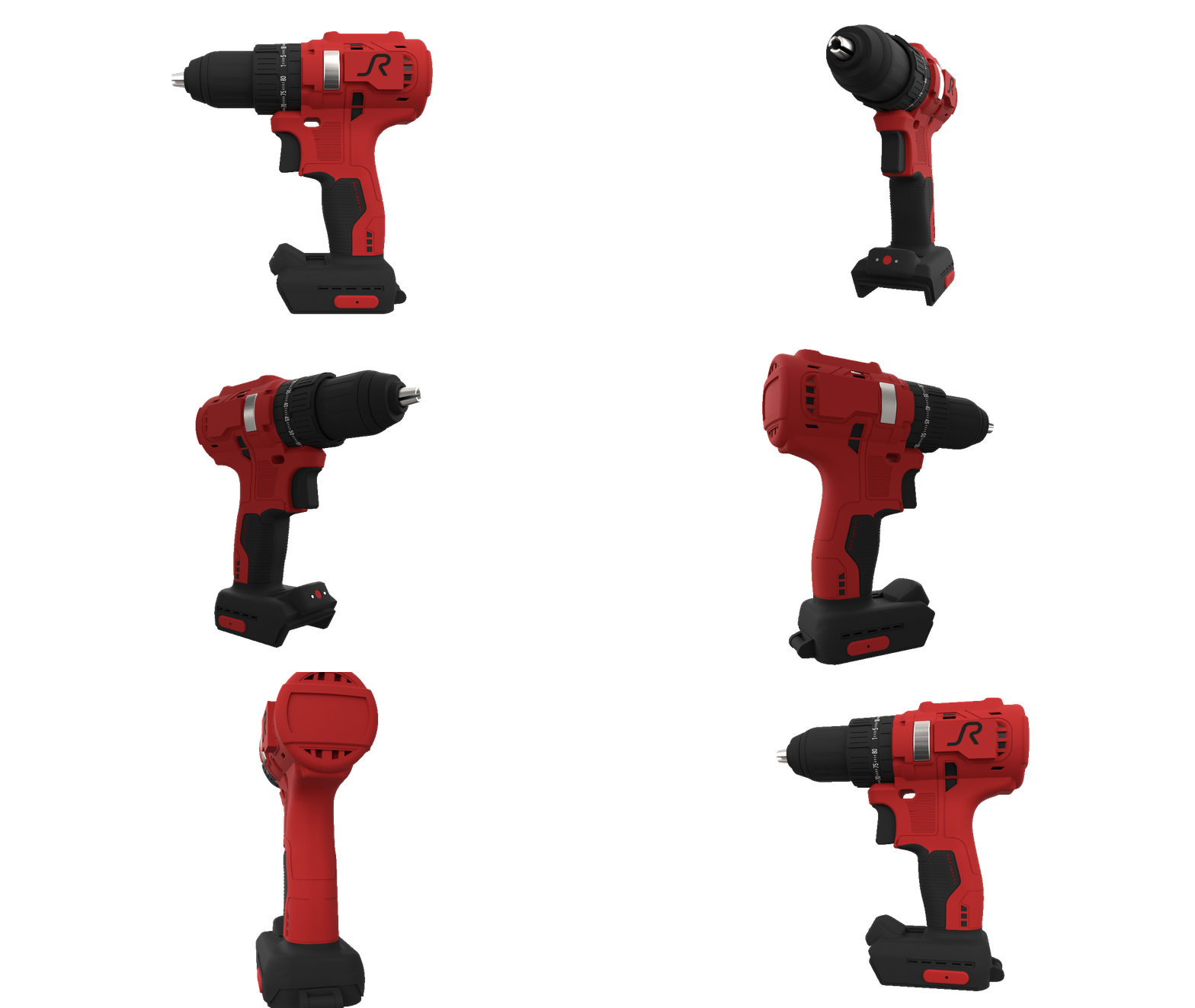
With the new render presets, a live preview window and more accurate colors, creating renders of your digital twins in RapidPipeline Twin Studio is now better than ever.
Meet the Author
Daniel
Technical 3D Artist
Daniel is a 3D Technical Artist at DGG, where he specializes in converting CAD data into optimized, real-time-ready 3D assets and digital twins. Alongside creating visualizations in Unreal Engine and Blender, he supports enterprise clients with their 3D workflows and is responsible for software QA. With a degree in Expanded Realities from Hochschule Darmstadt and early experience developing VR experiences in Unreal Engine, Daniel is passionate about 3D, XR and digital twins, and about finding the balance between visual quality and real-time performance.