Table of Contents
Introduction
CAD models can be a great source for creating product visualisations: they are accurate representations of the real-world product, representing it exactly as the customer will find it in the real world. However, creating polished, marketing-ready product renders from raw CAD data often requires several additional steps. These can include tessellation, cleaning and optimizing the geometry, material assignment and setting up a scene for rendering.
Creating multiple product visuals makes the process even more time consuming. If the same product needs to be shown in multiple environments such as a showroom, a home, outdoors and more, each scene would need to be created and set up separately.
In this article, we'll show you how to use RapidPipeline Twin Studio (RPTS) to prepare your CAD model, create product renders with transparent backgrounds, and then use AI to generate different environments for your renders.
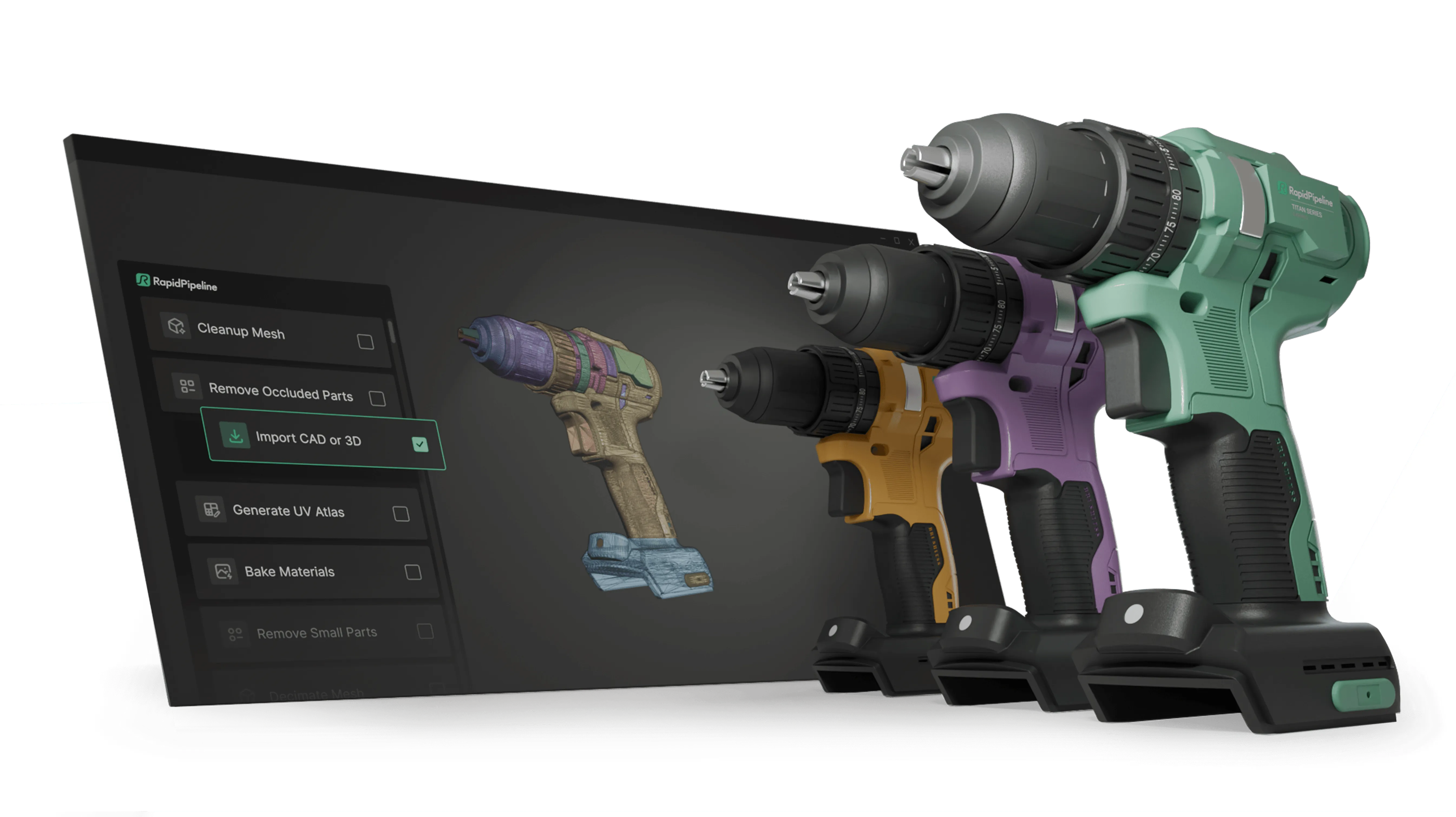
Create 3D digital twins for CGI & XR, faster than ever.
Turn your raw 3D or CAD into realistic digital twins.
Preparing CAD Files for Rendering
For this example, we selected a CAD coffee machine to showcase the entire workflow.
We start off by importing and tessellating the file in RapidPipeline Twin Studio.
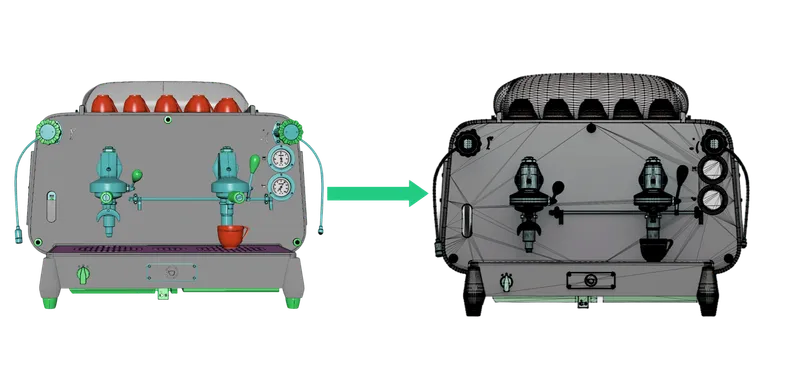
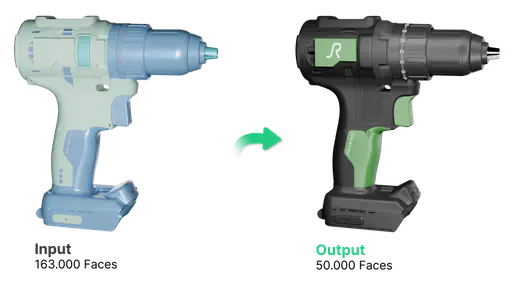
Once the model is tessellated, we can continue with mesh cleanup. This involves fixing any incorrectly oriented faces, reducing the total face count and removing any unnecessary occluded geometry that won't be visible in the final render.
Then, we can start applying the material. RPTS includes a range of materials that can be customized to suit various models, while also giving you the option to import your own custom materials. Once applied, these materials can be adjusted until the model matches its real-world counterpart.
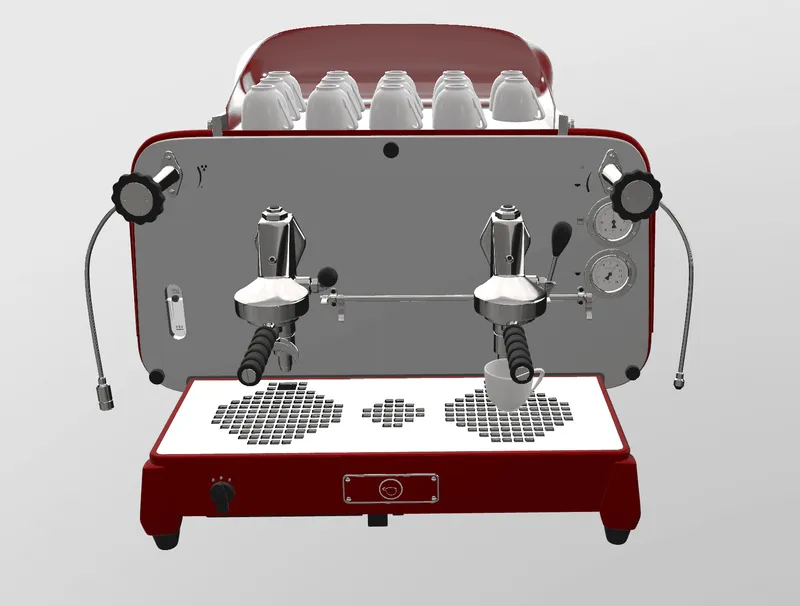
With the geometry and materials prepared, the model is ready for rendering.
Rendering the Model with RP Twin Studio
To render our model in RPTS, we simply switch to the Render tab and enable the Offline Renderer option.
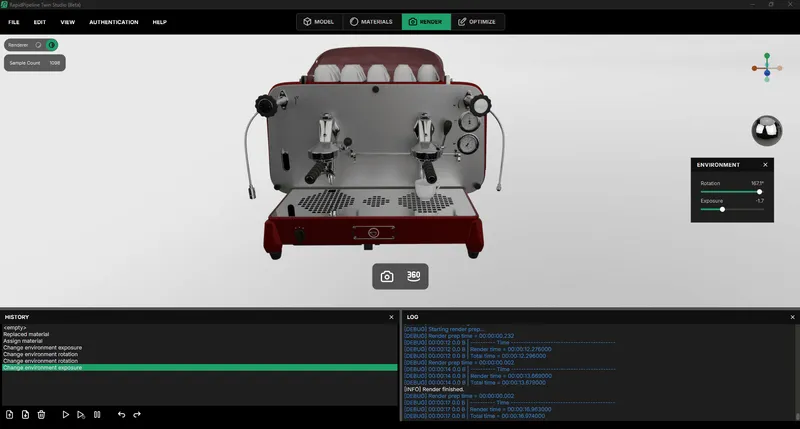
Twin Studio offers two rendering options:
1.Single Renders, which capture a render based on the current view
2.360° Turntable, which generates a complete 360° view of the model from a customizable number of angles.
For this example, we are using the single render option to create a few product renders of our coffee machine. These renders are saved with transparent backgrounds, giving us the basis we will need when creating the different environments with AI.
Create 3D digital twins for CGI & XR, faster than ever.
Turn your raw 3D or CAD into realistic digital twins.
Generating AI environments
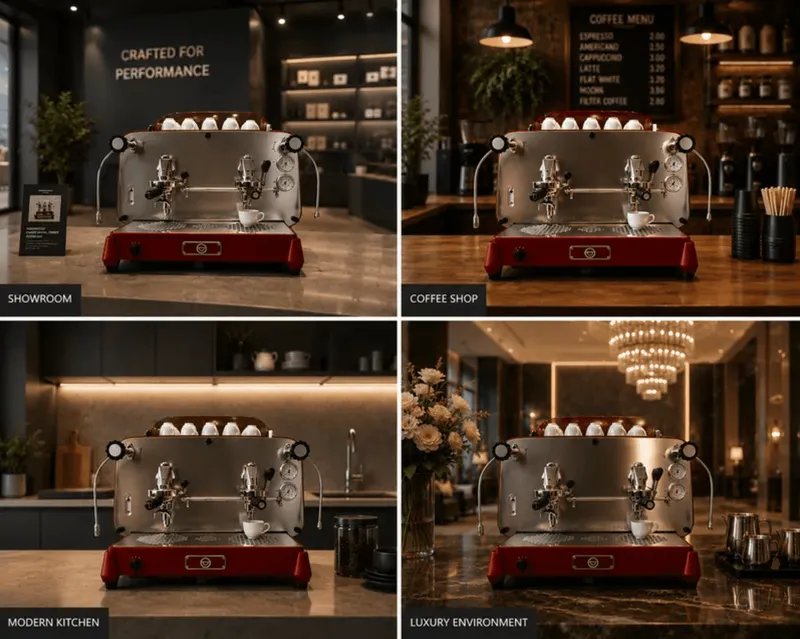
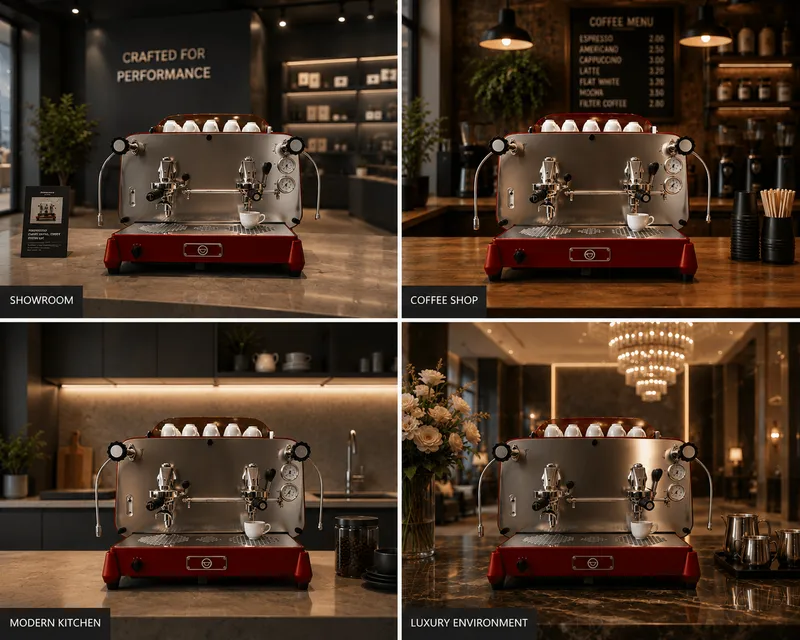
With our product renders ready, we can now begin generating different environments for our product. Since the renders have a transparent background, multiple scenes can be created using the same product image.
The renders can be uploaded into an AI image generation tool of our choice, and we can use prompts to describe the environments we wish to create. For our coffee machine, this could mean placing it in a kitchen, a coffee shop, a showroom, or any other setting that fits the product.
The prompt can be used to define elements such as location, lighting, time of day and overall atmosphere. This makes it possible to generate a range of different product visuals from just a few renders.
Conclusion
Combining Twin Studio’s CAD preparation and rendering with AI-generated environments provides a fast and flexible workflow for creating product visuals.
Instead of having to build multiple scenes, the model can be prepared once, rendered from all the desired angles, and then said renders can be used for creating a wide range of backgrounds and environments.
Finally, thanks to the powerful combination of precision from CAD and 3D rendering on one hand with the speed and freedom of generative AI on the other hand, marketing teams get a “best of both worlds” – ensuring perfect, eCommerce-grade product accuracy, while at the same time scaling up workflows quickly, through the power of AI.
Meet the Author

Daniel
Technical 3D Artist
Daniel is a 3D and VR artist and responsible for QA at DGG. Working with leading retailers, DGG is on a mission to automate 3D asset optimization workflows for Web, mobile and XR targets - for e-commerce, and beyond. Daniel completed his studies in Expanded Realities at the Hochschule Darmstadt.
You might be interested in