

How to Cleanup Mesh in Autodesk 3ds Max
General Information
This guide is part of the RapidPipeline 3D Plugin Actions Knowledge Base. It shows how to Cleanup Mesh on Autodesk 3ds Max; if you'd like to know more about it, please check out the following links:
Best-in-Class 3D Processing in Your Favorite Tools.
100% Local Processing via Desktop Software.
Tutorials & Videos
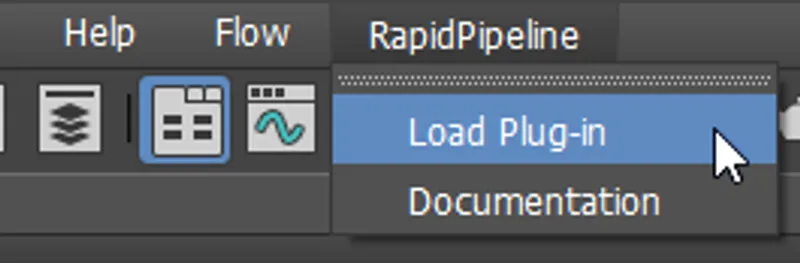
- On the Menu Bar, click on RapidPipeline and choose Load Plug-in.
- Select the faulty meshes by clicking on them in the Viewport (only the selected meshes will be processed), or select all the model, or do not select anything (all the scene will be processed).
- Inside the plugin window, choose the action Cleanup Mesh.
- Enable Fix Winding Order in the action settings.
- Press the Run button. These settings are optimal for this model, as some parts have incorrect winding order. For other models with faulty mesh normals, the setting Fix Winding Order may not be needed. In that case, simple use Recompute Input Normals. The angle at which recomputed normals will be considered “hard” is controlled with the Normal Hard Angle Threshold setting.
- Use the 3ds Max plugin
- Check for inverted faces
- Use the Cleanup Mesh action to fix winding order
- Examine the results
This tutorial shows how use the RapidPipeline Processor plugin in 3ds Max to clean up model´s geometry and fix frequent mesh issues. This page will guide you through the use of the action Cleanup Mesh on a CAD model example with faulty normals/winding order.
See below an overview of the performed fixes during this tutorial: the normals and winding order of the mesh, wrong in the original file, have been fixed in the output.
The example asset in this tutorial is based on 'Gusto - electric sports car concept' by Mikko Hörkkö, sourced from GrabCAD.
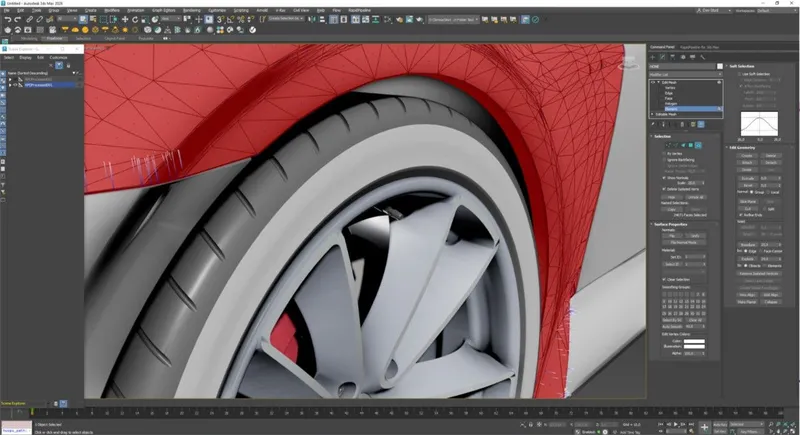
Input with wrong Winding Order
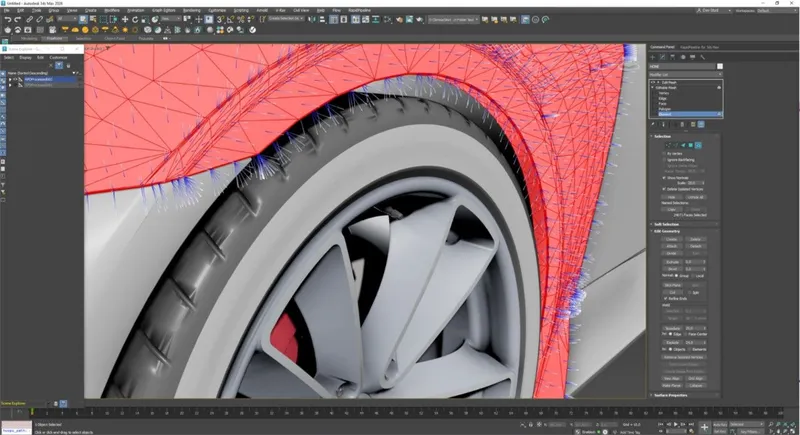
Output with correct Winding Order
Clean Up Mesh Action
- Select the faulty meshes by clicking on them in the Viewport (only the selected meshes will be processed), or select all the model, or do not select anything (all the scene will be processed).
- Inside the plugin window, choose the action Cleanup Mesh.
- Enable Fix Winding Order in the action settings.
- Press the Run button.
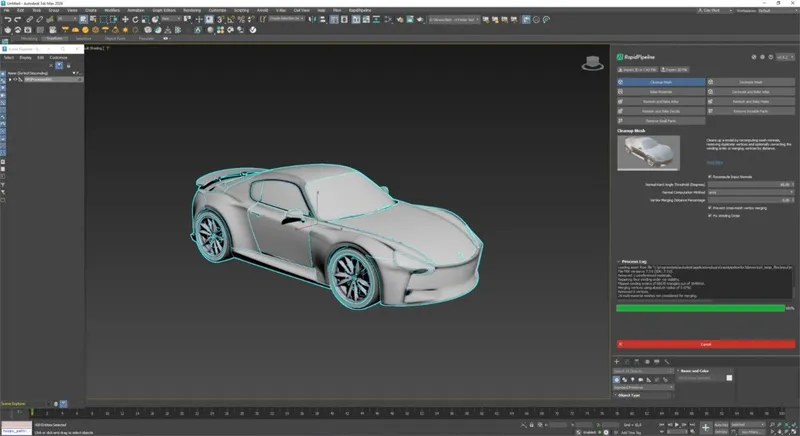
The Cleanup Mesh action opened in the plugin
These settings are optimal for this model, as some parts have incorrect winding order.
For other models with faulty mesh normals, the setting Fix Winding Order may not be needed. In that case, simple use Recompute Input Normals. The angle at which recomputed normals will be considered “hard” is controlled with the Normal Hard Angle Threshold setting.
Examine the Results
To analyze the model, enable Backface Culling from the Object Properties. This will display the mesh as single-sided in the viewport, showing where faces are flipped incorrectly.
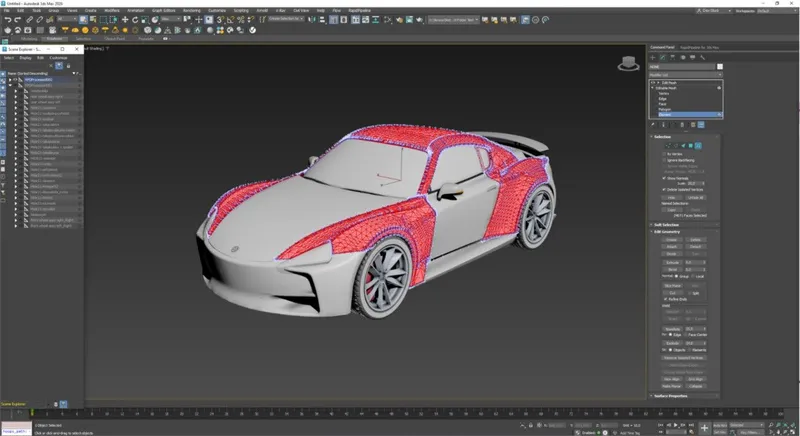
Alternatively, use Edit Mesh to select an Element of a mesh, and enable the option Show Normals to inspect the mesh normals of your model.
You can follow the same steps for the input and the output model to examine the winding order fix closely.
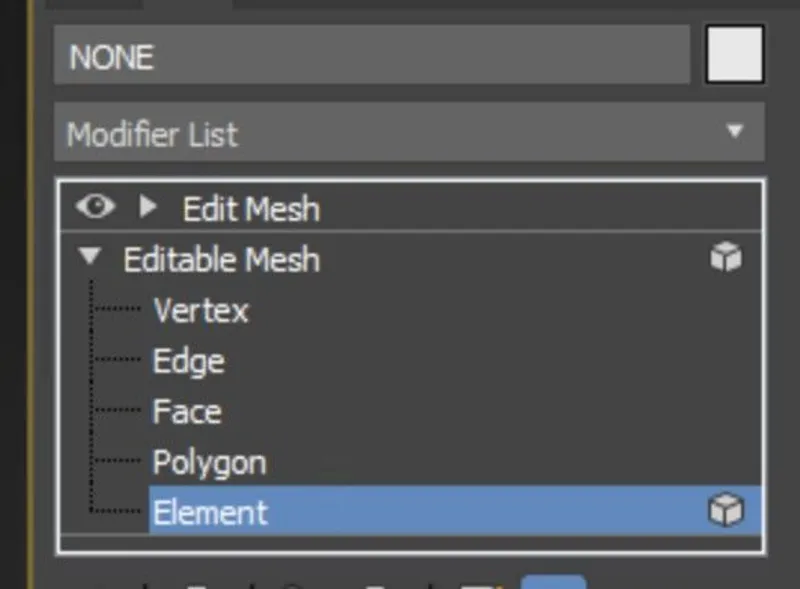
The Element selection in Editable Mesh
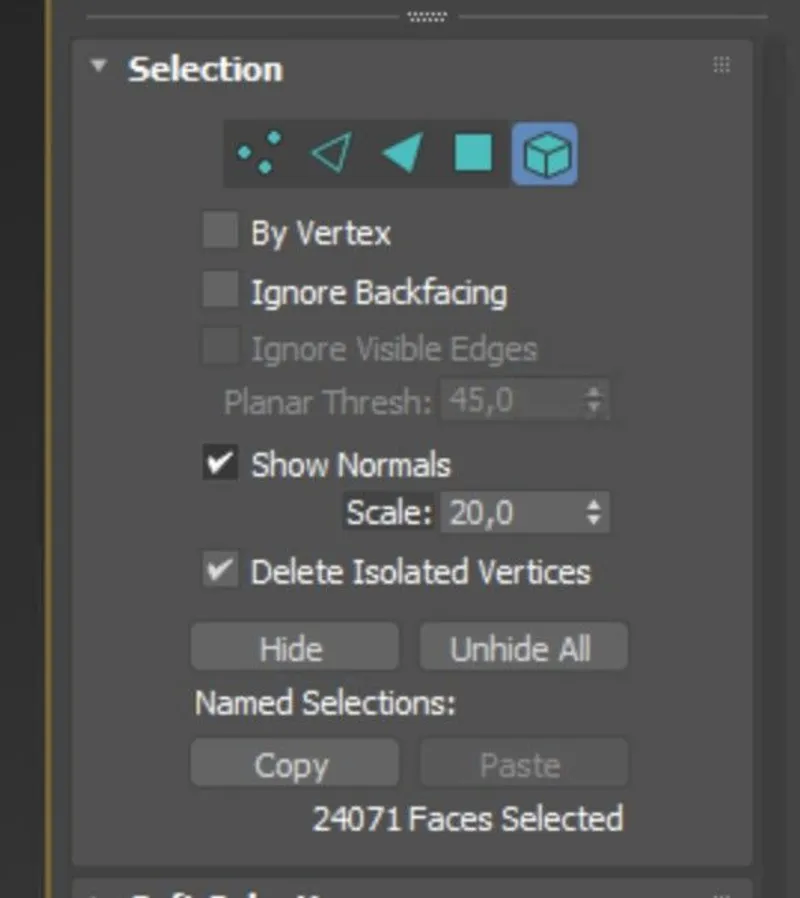
The Show Normals option in the 3ds Max UI
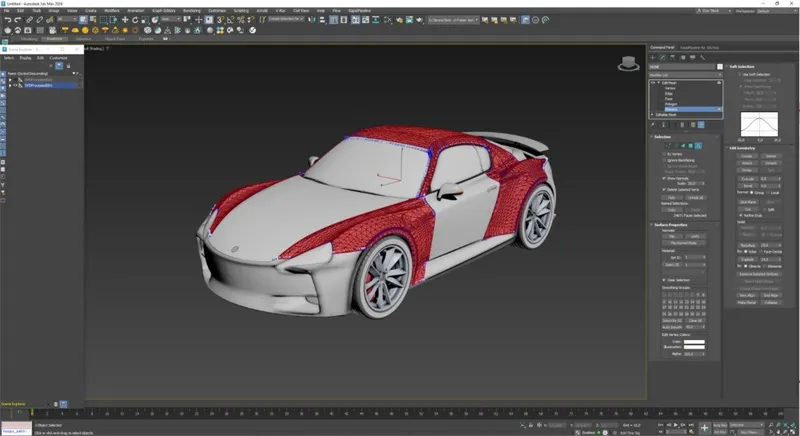
The Input with wrong Winding Order
The output with correct Winding Order
To get started with 3D data conversion and optimization today, sign up for a free account!
If you have any questions, feel free to chat with our human team.
Meet the Author

3D Knowledge Team
3D Technical Artists
RapidPipeline lets you convert, optimize and prepare your 3D models, easily. Try it today, or meet our human 3D experts. The Best-in-Class Tools for Your 3D Processing Jobs