3D Model of the Month - Generating Imposters (The Game Restaurant Series #01)

Introduction
3D imposters are a technique that focuses on performance optimization by substituting 3D models with simplified geometry. They display pre-rendered textures from multiple viewing angles. The process involves capturing the original model from different perspectives, baking those views into texture maps, and projecting them onto a lightweight mesh—often just a flat plane. This approach significantly reduces rendering costs in real-time environments, enabling distant objects to maintain high visual quality while using far fewer resources.
The Problem
This month’s selected model is a beautiful plant that comes with 107k faces.
When optimizing for real-time use—and the plant is not the focal point—this high face count can negatively impact performance.
Artists could optimize it manually, going through each leaf one by one and delete vertices.
As you can imagine, this is a rather time-wasting process for 3D artists. Fortunately, our new actions provide a much more streamlined solution!
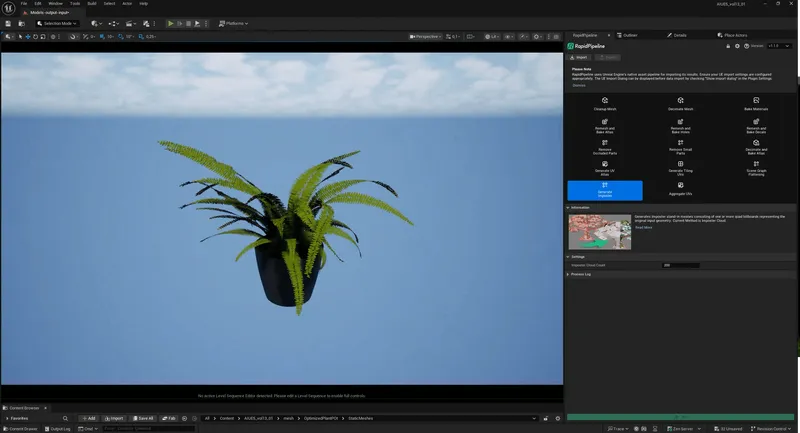
Image 1: Input Model – Plant in a Pot
Best-in-Class 3D Processing in Your Favorite Tools.
100% Local Processing via Desktop Software.
The Solution
All our plugins, including Rapid Pipeline for Unreal, come with several “actions” that allow users to quickly perform various processes. These include:
Import wide range of 3d file types, including over 30 CAD formats
Decimate a model's geometry to reduce its total face count
Bake material properties
Remesh a model
Remove small and hidden parts of a model
And many more
Using Actions
Introducing the new action called “Generating Imposters”! The current method is also known as Imposter Cloud, creating quads generated as a cloud replacing the input model's original mesh surface. In addition, you can also control the number of imposter quads to be generated for the imposter cloud.
Select the plant and run the “Generate Imposters” Action. The pot and soil can be processed with “Decimate and Bake Materials”, which reduces the face count while combining the materials into one compact atlas. If your mesh contains multiple parts with different optimization requirements, our plugin lets you easily process each part selectively.
Best-in-Class 3D Processing in Your Favorite Tools.
100% Local Processing via Desktop Software.
Results
With just the click of a few buttons, the plugin saves us from the time-consuming process having to manually fix a relatively common mesh issue. Our model is now ready for further use!
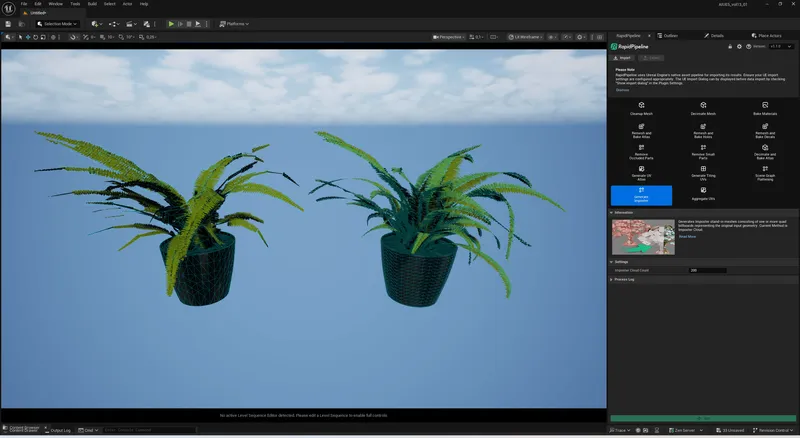
While the input model has over 100k faces, the imposter only has 1k faces and still looks the same from a distance.
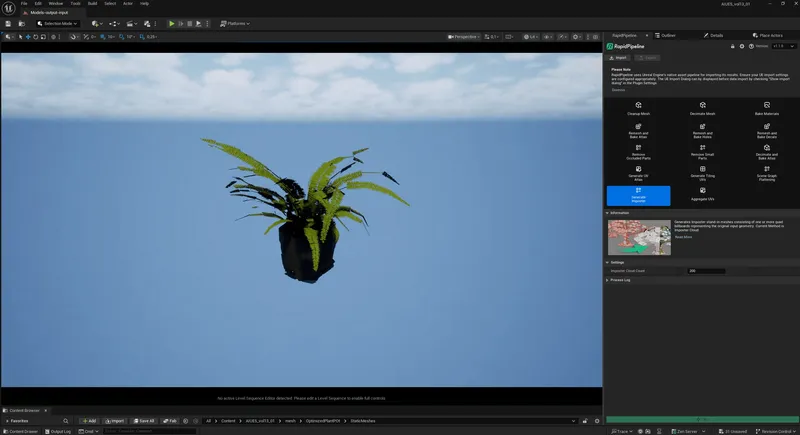
Image 02: Output

Image 03: Output and Input next to each other in Wireframe mode
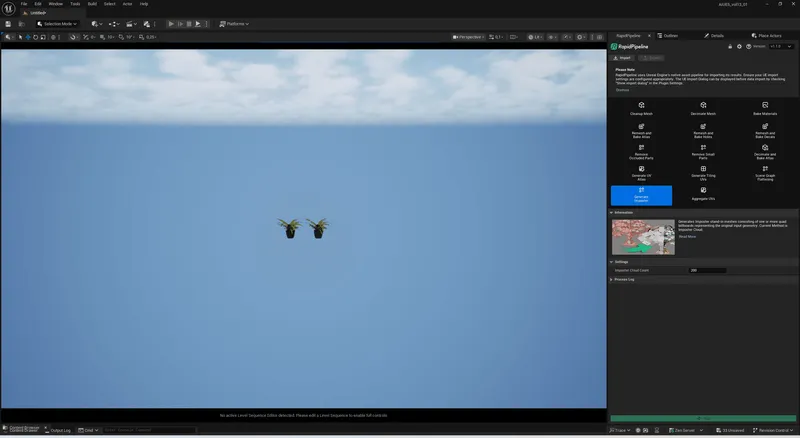
Image 04: The Models next to each other from a distance
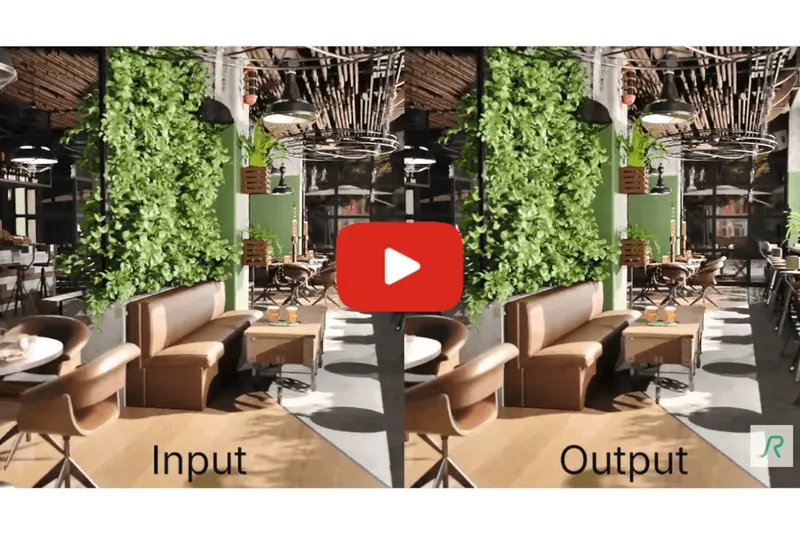
You can also check out a comparison of the input and output model in an Unreal Scene!
Meet the Author

Hue
Technical 3D Artist
Hue is a 3D Artist / QA Artist / UI+UX Designer at DGG. Working with leading retailers, DGG is on a mission to automate 3D asset optimization workflows for Web, mobile and XR targets - for e-commerce, and beyond. Hue has previously worked for firms that specialize in VR/Real-time projects and her field of expertise is 3D Environment Art and Unreal Engine.
You might be interested in