

How to Decimate Mesh in Autodesk Maya
General Information
This guide is part of the RapidPipeline 3D Plugin Actions Knowledge Base. It shows how to Decimate Mesh on Autodesk Maya; if you'd like to know more about it, please check out the following links:
Best-in-Class 3D Processing in Your Favorite Tools.
100% Local Processing via Desktop Software.
Tutorials & Videos
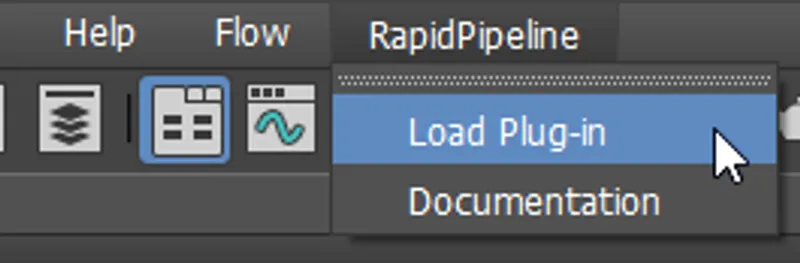
- On the Menu Bar, click on RapidPipeline and choose Load Plug-in.
- Select the model you want to optimize (if no selection is made, the whole scene will be processed).
- Inside the plugin window, choose the action Decimate Mesh.
- Press the Run button. :::tip Decimation actions by default use a deviation target. When the Deviation Percentage is more than zero, the Face Target will act as an upper limit for the face count, instead of acting as a forced target. Increasing the Deviation Percentage will allow the optimizer to go lower when possible. However if you simply want to reach an exact face target, the Deviation Percentage should be set to 0. :::
- Use the Maya plugin
- Run "Decimate Mesh" action
- Examine the results
This tutorial shows how use the RapidPipeline Processor plugin in Maya to simplify the geometry of a model with the Decimate Mesh action.
The asset used in this tutorial is the "Belz's RTFKT Challenge" (https://skfb.ly/6VnPP) by Belzar Sirus is licensed under Creative Commons Attribution (http://creativecommons.org/licenses/by/4.0/).
Here is a preview of the processing´s output: the input shoe has about 150K faces while the output has been reduced to 50k faces.
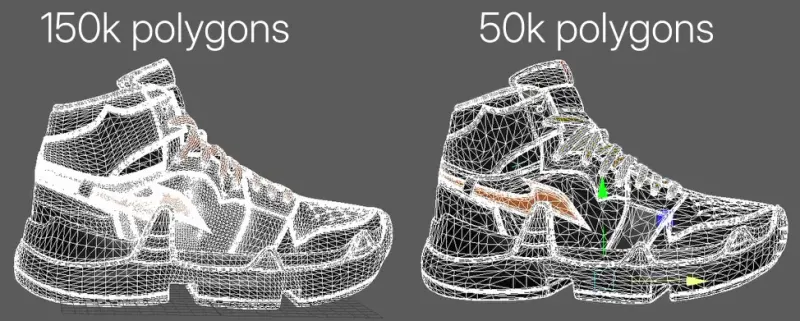
The shoe asset, before and after decimation.
Decimate Mesh Action
- Select the model you want to optimize (if no selection is made, the whole scene will be processed).
- Inside the plugin window, choose the action Decimate Mesh.
- Press the Run button.
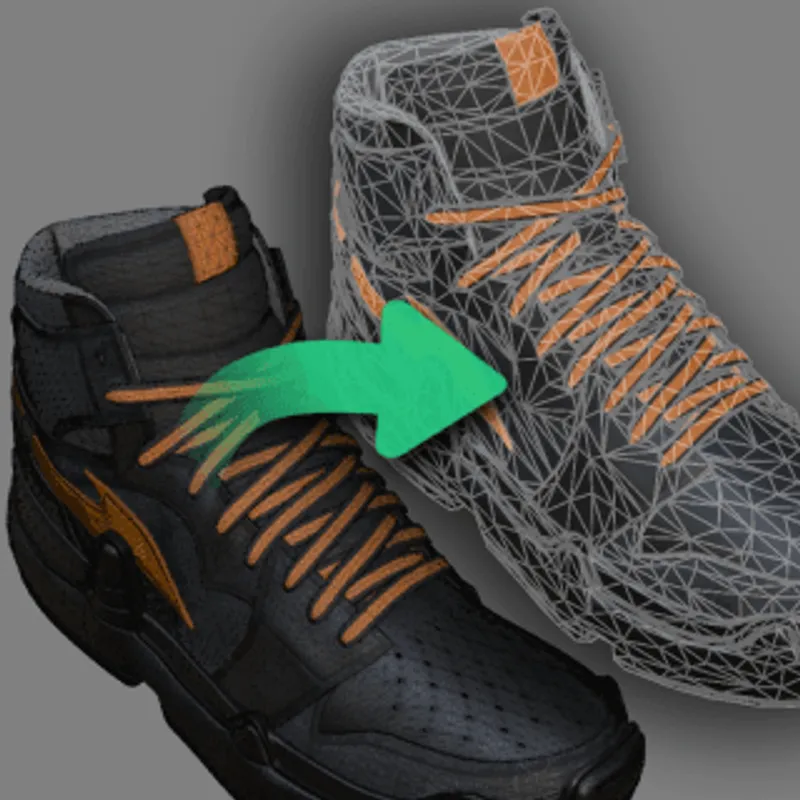
The Decimate Mesh action opened in the plugin
Examine the Results
To fully check the topology optimization by enabling Wireframe on Shaded from the Viewport Shading drop-down menu, so you can see a wireframe view of your models.
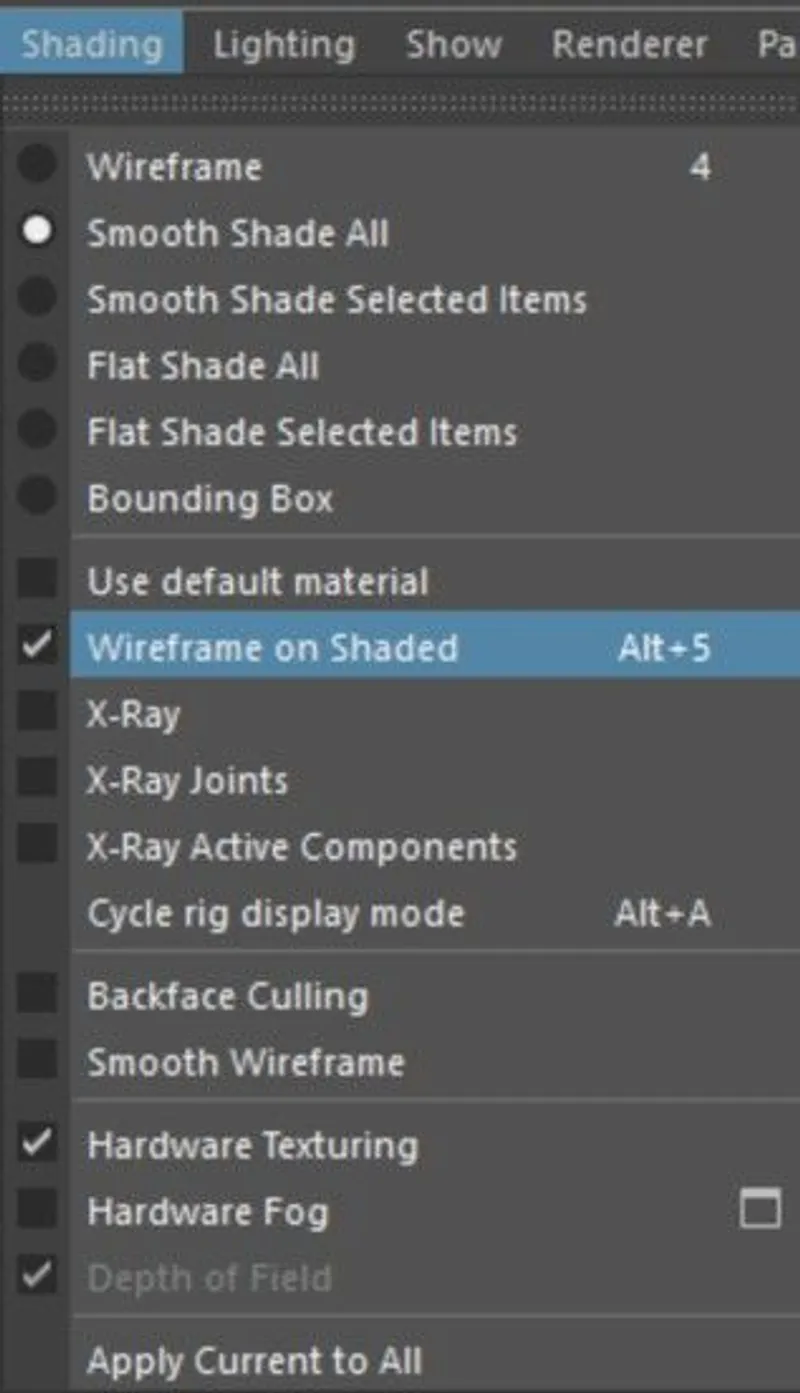
"Wireframe on shaded” option in the Viewport Shading drop-down menu.
To get started with 3D data conversion and optimization today, sign up for a free account!
If you have any questions, feel free to chat with our human team.
Meet the Author

3D Knowledge Team
3D Technical Artists
RapidPipeline lets you convert, optimize and prepare your 3D models, easily. Try it today, or meet our human 3D experts. The Best-in-Class Tools for Your 3D Processing Jobs