

How to Remove Small Parts in Autodesk 3ds Max
General Information
This guide is part of the RapidPipeline 3D Plugin Actions Knowledge Base. It shows how to Remove Small Parts on Autodesk 3ds Max; if you'd like to know more about it, please check out the following links:
Best-in-Class 3D Processing in Your Favorite Tools.
100% Local Processing via Desktop Software.
Tutorials & Videos
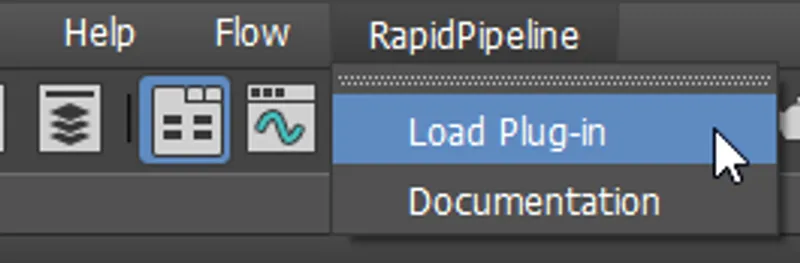
- On the Menu Bar, click on RapidPipeline and choose Load Plug-in.
- Select the model you want to optimize (if no selection is made, the whole scene will be processed).
- Inside the plugin window, choose the action Remove Small Parts.
- Press the Run button.
- Use the 3ds Max plugin
- Select a part
- Run "Remove Small Parts" action
- Examine the results
This tutorial shows how use the RapidPipeline Processor plugin in 3ds Max to filter and remove small parts of your model automatically. This workflow is useful with trims, bolts, screws and similar small parts.
For more information see the 3ds Max plugin Documentation. The Add-On runs on a powerful 3D data optimization and automation toolset, for more about this see the 3D Processor Reference.
The example asset in this tutorial is Degradation Vessel with Gear Pump by Steve Feamster, solely used for documentation purposes and in accordance with GrabCAD’s Terms of Use.
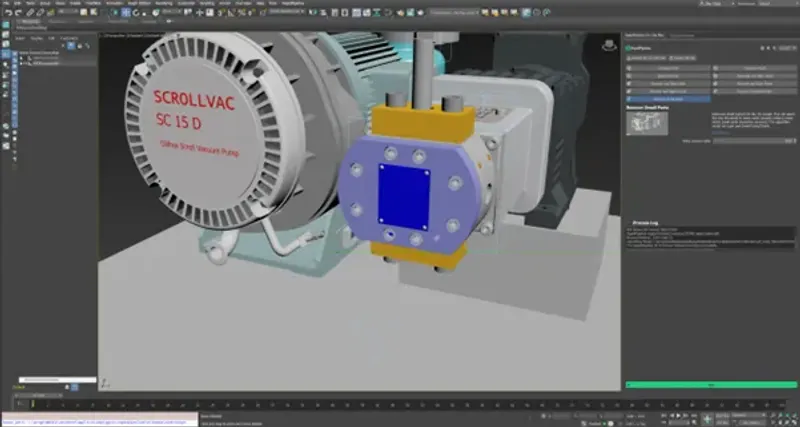
Input with small parts
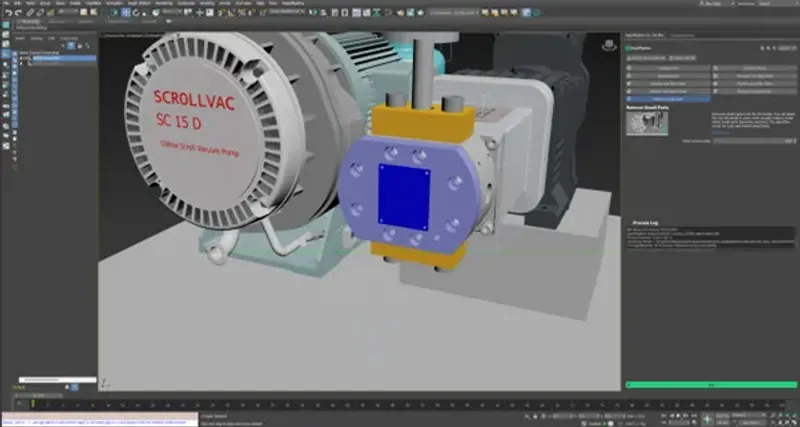
Output without small parts
Here is a preview of the processing´s output: the input asset (top) has 870 K faces and the output (bottom) has around 800 K faces. Over 10 small meshes (screws) from the input model have been automatically removed.
Remove Small Parts Action
- Select the model you want to optimize (if no selection is made, the whole scene will be processed).
- Inside the plugin window, choose the action Remove Small Parts.
- Press the Run button.
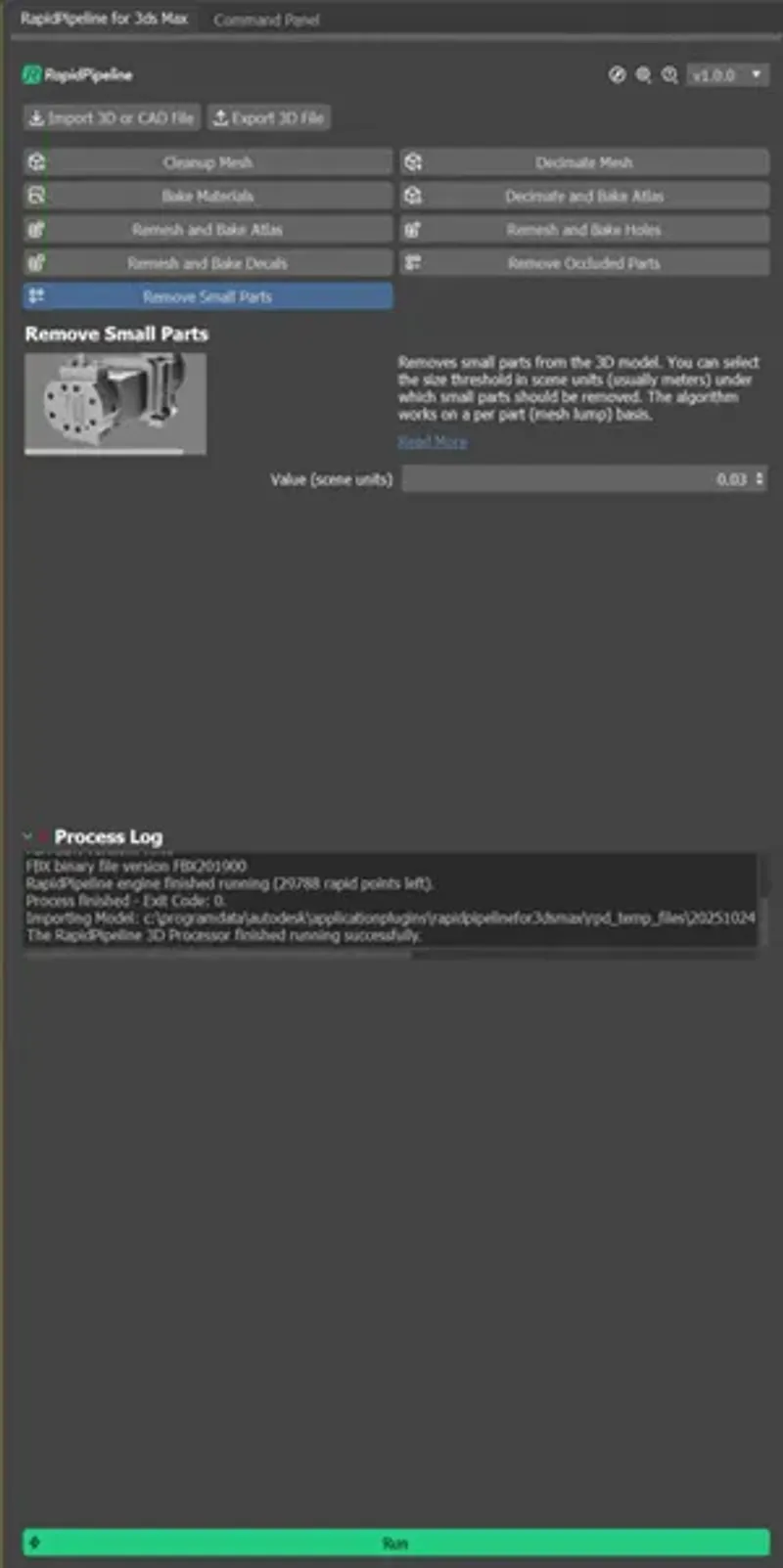
The Remove Small Parts action opened in the plugin
Examine the Results
To examine the results, you can enable “Wireframe Override” to check the X-Ray view of your model.
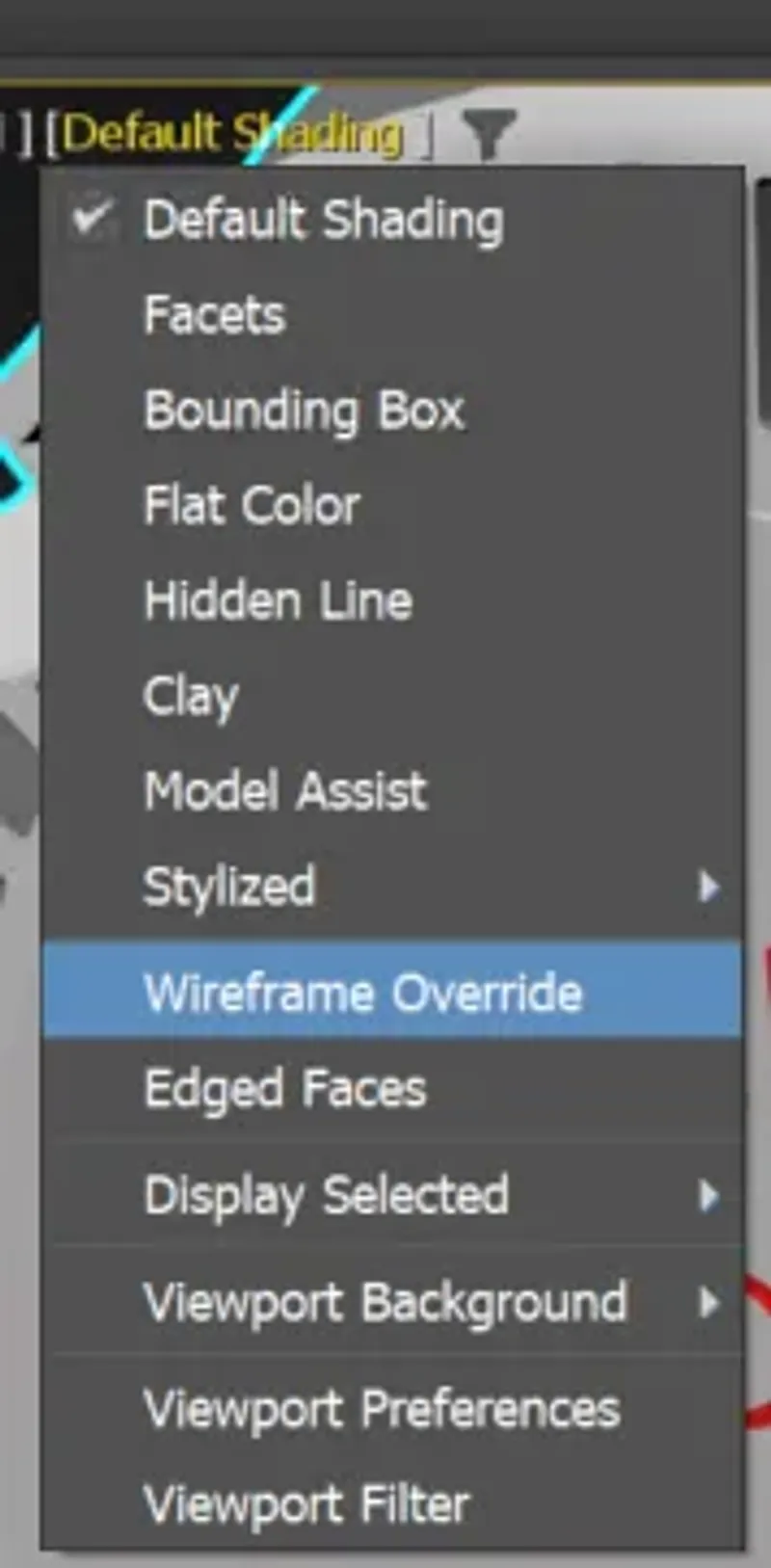
"Wireframe Override” option in the Shading drop-down menu.
To get started with 3D data conversion and optimization today, sign up for a free account!
If you have any questions, feel free to chat with our human team.
Meet the Author

3D Knowledge Team
3D Technical Artists
RapidPipeline lets you convert, optimize and prepare your 3D models, easily. Try it today, or meet our human 3D experts. The Best-in-Class Tools for Your 3D Processing Jobs