3D Model of the Month - From CAD to Render-ready Digital Twins: RapidPipeline Twin Studio

Introduction
Introducing our new standalone app, RapidPipeline Twin Studio (currently in Beta), which helps teams simplify CAD preparation workflows and move faster from engineering data to clean, structured, render-ready 3D assets.
Advantages
No plugins, no
Runs locally, assures privacy
Wide range of actions for optimization and cleanup
Easy Material Assignments
Preparing digital twins for real-time use
This month’s selected 3D model is a detailed drill that comes with 163k faces.
For real-time use cases, the face count can be significantly lower to guarantee fast loading times and high performance. While 3D artists could manually optimize the mesh, this is a rather time-wasting process. Fortunately, our app provides a much more streamlined solution.
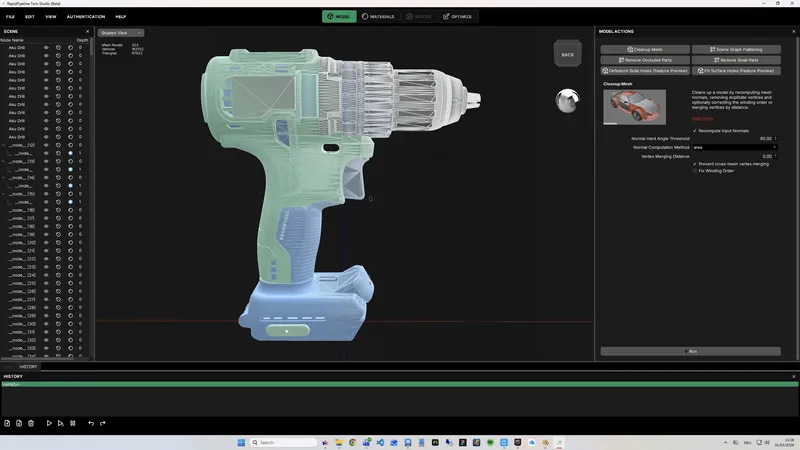
Image 1: Input Model – Drill
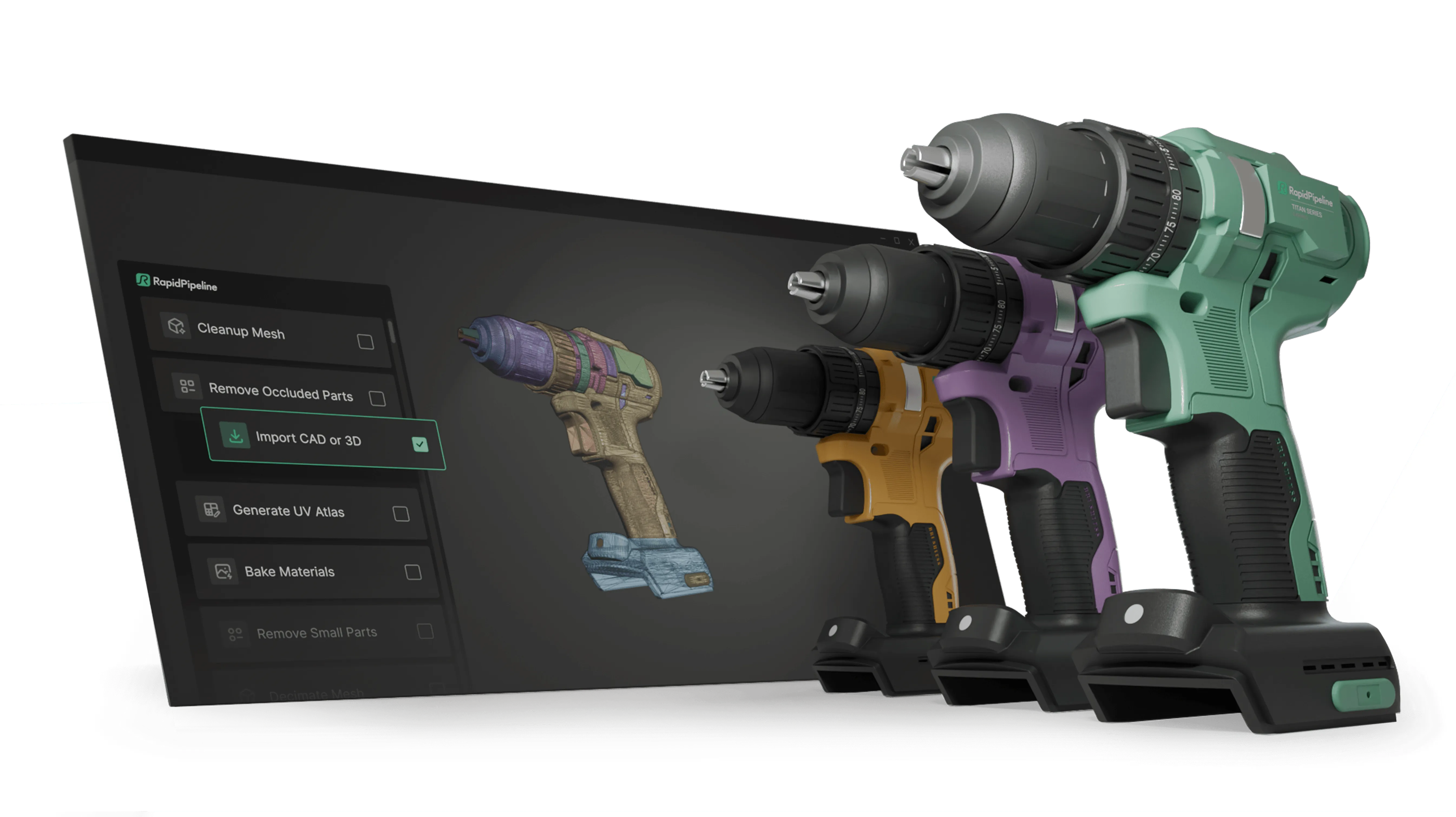
Create 3D digital twins for CGI & XR, faster than ever.
Turn your raw 3D or CAD into realistic digital twins.
Cleanup, assign Materials and optimize - all within RapidPipeline Twin Studio
The App comes with a wide range of actions and features:
Import numerous 3d file types, including over 30 CAD formats
Decimate a mesh to reduce the face count
Remove small and occluded parts of a model
Assign new materials or edit existing ones
Bake materials to improve performance
Remesh a model and create a new, performant mesh
And many more!
1. Model Mode: Remove Occluded Parts
This process removes internal or hidden sections of a 3D model that often contribute significantly to the overall face count. Any geometry that is not visible or required for the intended use is eliminated. As a result, the mesh is reduced from over 163k faces to approximately 63k faces.
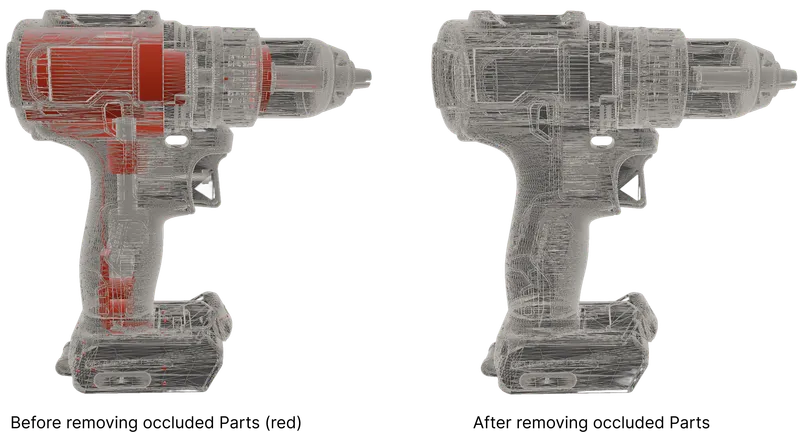
Image 2: Wireframe Drill Inner Parts
2. Material Mode: Material Assignment
Material mode provides access to an internal material library that also includes labels. These labels are alpha textures (for instance logos) that can be applied to your 3D models. On this drill, they can be used to show safety warnings, manufacturer details, or speed and electrical specifications.
The materials from the library are also customizable. You can adjust their properties or upload your own textures for elements like base color, roughness, normal maps, and more.
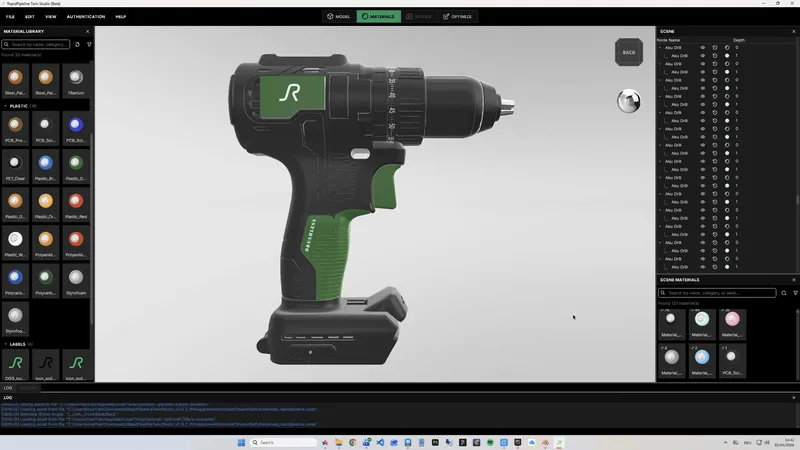
Image 3: Material Assignment
Create 3D digital twins for CGI & XR, faster than ever.
Turn your raw 3D or CAD into realistic digital twins.
Optimize Mode: Decimate Mesh
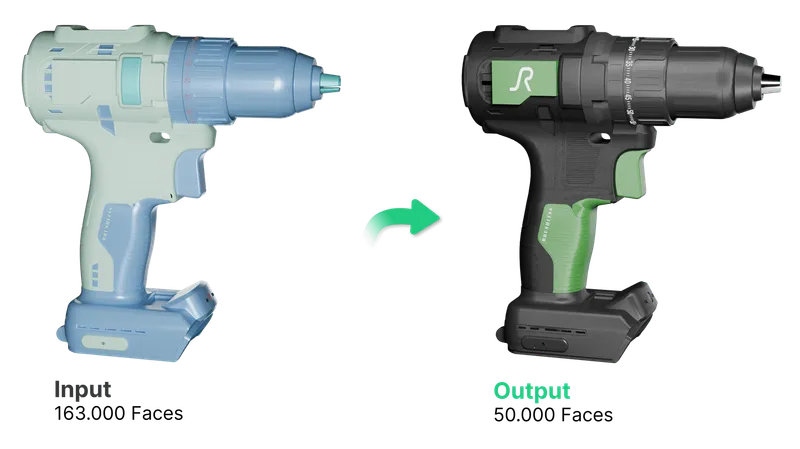
Finally, the optimization allows you to significantly reduce the number of faces or set it to a specific target. The “Decimate Mesh” option is currently set to 50,000 faces while keeping the mesh normals intact. You can easily change this value to your needs.
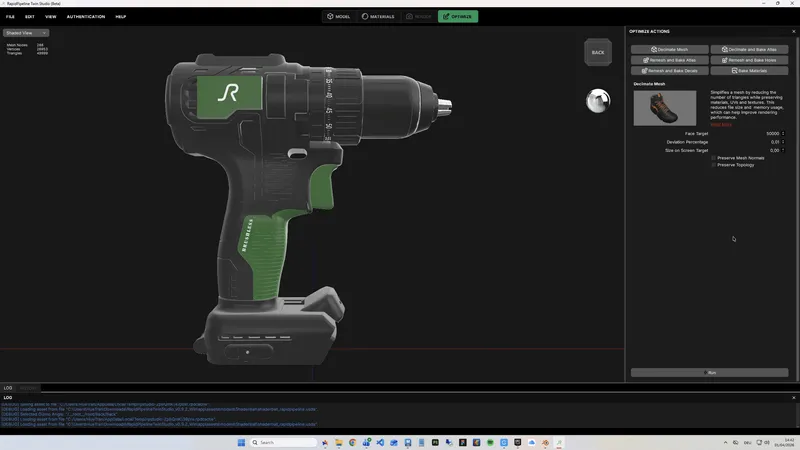
Image 4: Optimized Model with 50k faces
The Result: Fast, Easy and Render-Ready
With just a few clicks, the plugin eliminates the time-consuming process of manually cleaning up this common mesh issue and use of a 3D material program.
While the input mesh has over 163k faces, the output model only has 50k faces and still looks identical. Now, your digital twin is ready for further use!
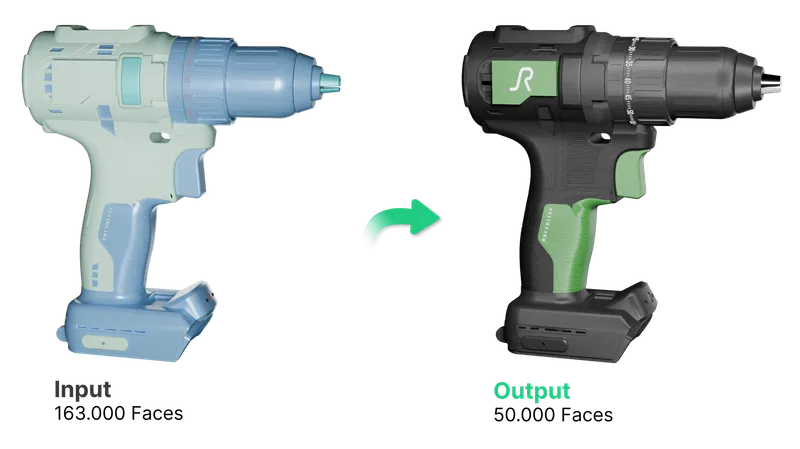
Image 5: Input and Output
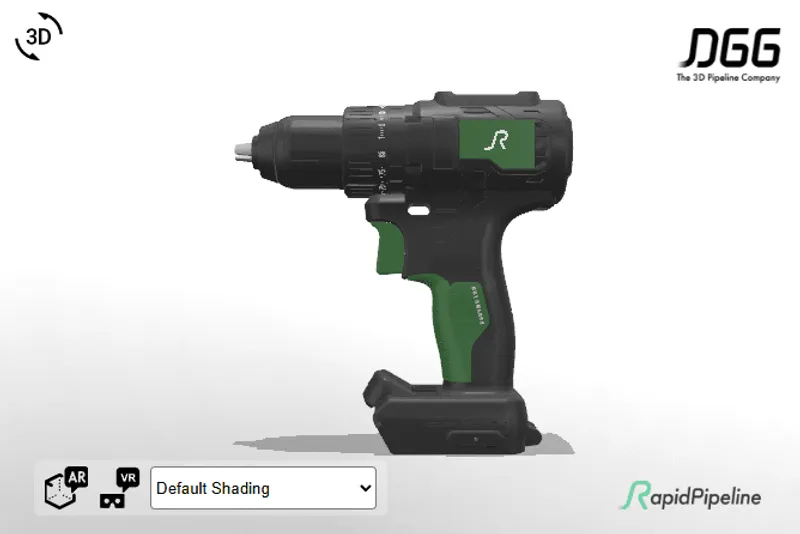
You can also check out the new 3D Model as an interactive embed in AR!
If you want to learn more about our Standalone App, check out our recent webinar here.
Meet the Author

Hue
Technical 3D Artist
Hue is a 3D Artist / QA Artist / UI+UX Designer at DGG. Working with leading retailers, DGG is on a mission to automate 3D asset optimization workflows for Web, mobile and XR targets - for e-commerce, and beyond. Hue has previously worked for firms that specialize in VR/Real-time projects and her field of expertise is 3D Environment Art and Unreal Engine.
You might be interested in